
Snippets
A snippet is a small, ready-made addition to the right-click menu, such as Copy hash on a file or Compress to ZIP. The Snippets page lists the ones that come with the app and a selection from RubicBG's snippet collection. Turn one on and it is in the menu the next time you right-click. Turn it off and it is gone. You don't need to write or edit any code.
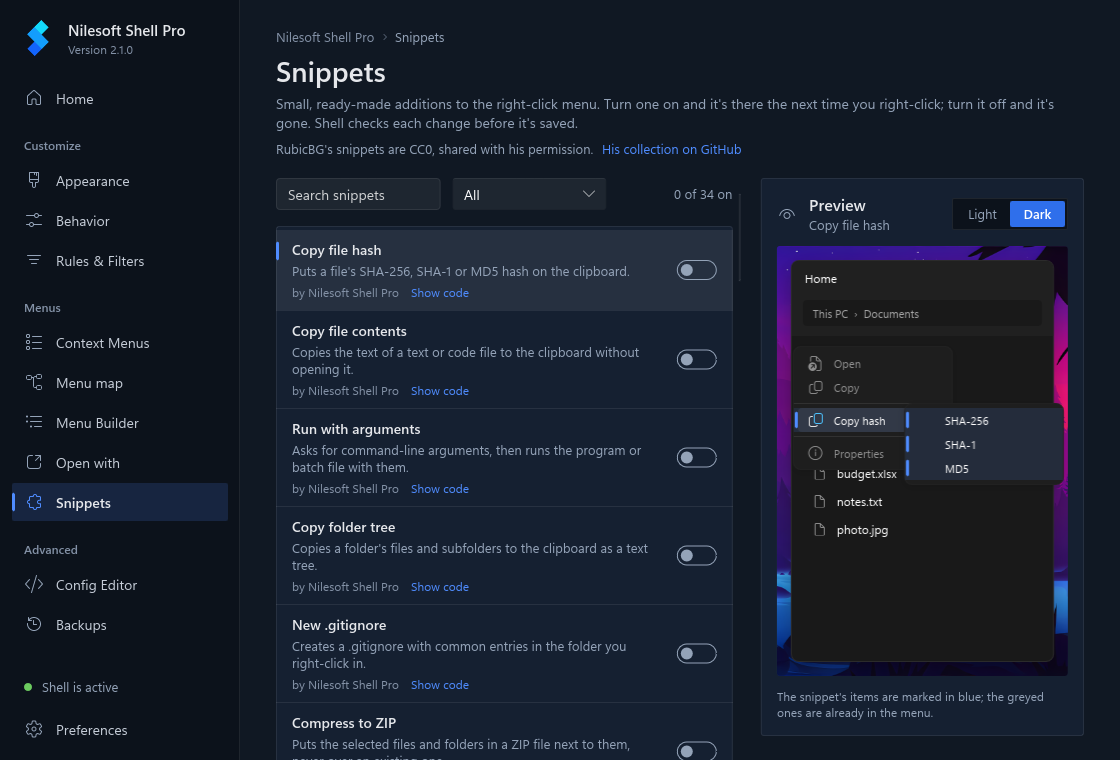
Finding a snippet
- Type in Search snippets to filter the list by name or description.
- Pick a category (for example Files, Archives, Windows or Apps) to see only those, or All to see everything.
- The count at the top right says how many snippets are on.
What each row shows
- The name and one line about what it does.
- by ...: who wrote it. The snippets by Nilesoft Shell Pro are written for this app, use the MIT license and are built into it. The snippets by RubicBG come from RubicBG's collection and are built into the app too (see below). by RubicBG is a link to his collection on GitHub.
- Labels after the name, when they apply:
- Runs as administrator: the snippet starts something with administrator rights. Windows asks you to allow it each time.
- Uses the internet: the snippet opens a web page or sends something over the internet. The row's description says what is sent.
- Needs ..., for example Needs 7-Zip: a program the snippet uses is not installed. The switch is greyed out until you install it. Come back to the page afterwards and the label is gone.
- Show code opens the snippet's code under the row, so you can see exactly what it adds. Hide code closes it again.
Preview
Click a row to see what that snippet adds to the menu before you turn it on. The first snippet is shown when the page opens. The preview is on the right; in a narrow window it opens under the row you clicked.
- The menu is drawn in your theme, the same way as the live preview on the Appearance page, on your wallpaper or in a File Explorer window. Light and Dark switch between the two, here and on the Appearance page.
- The snippet's own items are marked in blue. The greyed items around them, such as Open, Copy and Properties, are already in the menu and only show where the new items go. A submenu opens when you point at it.
- When a snippet adds items in more than one place, buttons above the menu switch between them: File, Folder, Background (the empty space in a folder), Desktop, Drive and Taskbar.
- A snippet for some files only says so under the menu, for example Shown for a .zip file.
- An item whose name comes from what you right-click shows Name from the selection in italics.
- A snippet that only changes or hides other items, and a snippet the app can't read the menu of, shows its code instead, with a line that says why.
The app asks Shell itself which items the snippet adds (in a temporary folder, with your theme), so the preview never changes your configuration. It is close to the real menu, not exact: Windows adds its own items around it.
Turning a snippet on or off
Click the switch. The change is saved right away; there is no Save button on this page.
- The app takes a snapshot of your configuration first.
- It checks the change with Shell. If Shell would not load the result, nothing is saved and a message says why.
- Shell picks up the change the next time you right-click.
A snippet that is on stays on after an update of the app. To undo a change, turn the switch back, or restore the snapshot on the Backups page.
Where the files go
When you turn on a snippet, the app copies it to imports\snippets\<name>.nss in your
configuration folder (%APPDATA%\Nilesoft\Shell) and lists it in
imports\settings-app-snippets.nss, a file the app looks after. shell.nss gets one line
that loads that list:
import 'imports/settings-app-snippets.nss'Turning a snippet off removes it from the list and deletes its copy. The snapshot taken before still has it.
On the Context Menus page the list shows up as the Snippets module. Turning that module off turns every snippet off at once, without changing the switches here; turning a snippet on turns the module back on.
Updates and your own changes
When a new version of the app brings a newer version of a snippet you have on, the app replaces your copy the next time it starts, as long as you never changed that copy.
If you edited the copy, for example in the Config Editor, your version is kept and the row says You changed this copy, so newer versions aren't applied to it. To get the bundled version back, turn the snippet off and on again.
Snippets by RubicBG
The rows by RubicBG come from RubicBG's Nilesoft Shell Snippets, a large community collection on GitHub. All credit for them goes to RubicBG. His snippets are CC0 (public domain), and the app includes them with his permission. The page lists a selection: snippets that load in this version of Shell and don't need administrator rights, upload files, or change security settings. The names and descriptions on the page are written for this app.
- The selected files come with the app, unchanged from his repository, so turning one on works offline like the app's own snippets.
- They are also in the
snippets\rubicbgfolder of the installation, next to his license text (LICENSE.txt). - When an update of the app brings a newer version of one, your copy is brought up to date the same way, unless you edited it.
The rest of the collection, and how to add any of its snippets by hand, is described on the Snippets page of these docs.
Troubleshooting
- The switches are greyed out and a blue message is at the top. Explorer reads the shared configuration in the program folder, which the app never writes to. Press Create personal config.
- Not saved: the config would fail to load. Shell rejected the result, so nothing was changed. The message names the file and line. Often it is another file in your configuration that already has an error: fix it in the Config Editor and try again.
- A snippet is on but its item doesn't show. Most snippets only appear for some selections, for
example Extract to folder only on a
.zipfile and New .gitignore only on the empty space in a folder. Also check that the Snippets module is on in Context Menus. - The copy in imports\snippets is missing. The file was deleted outside the app. Turn the snippet off and on again.