
Backups
Every time the app saves your configuration, it first takes a snapshot: a copy of
shell.nss and every file it imports. The Backups page lists these snapshots, shows what changed since
each one, and puts one back if you want to undo a change.
Snapshots are kept in %APPDATA%\Nilesoft\Shell\backups, one folder per snapshot.
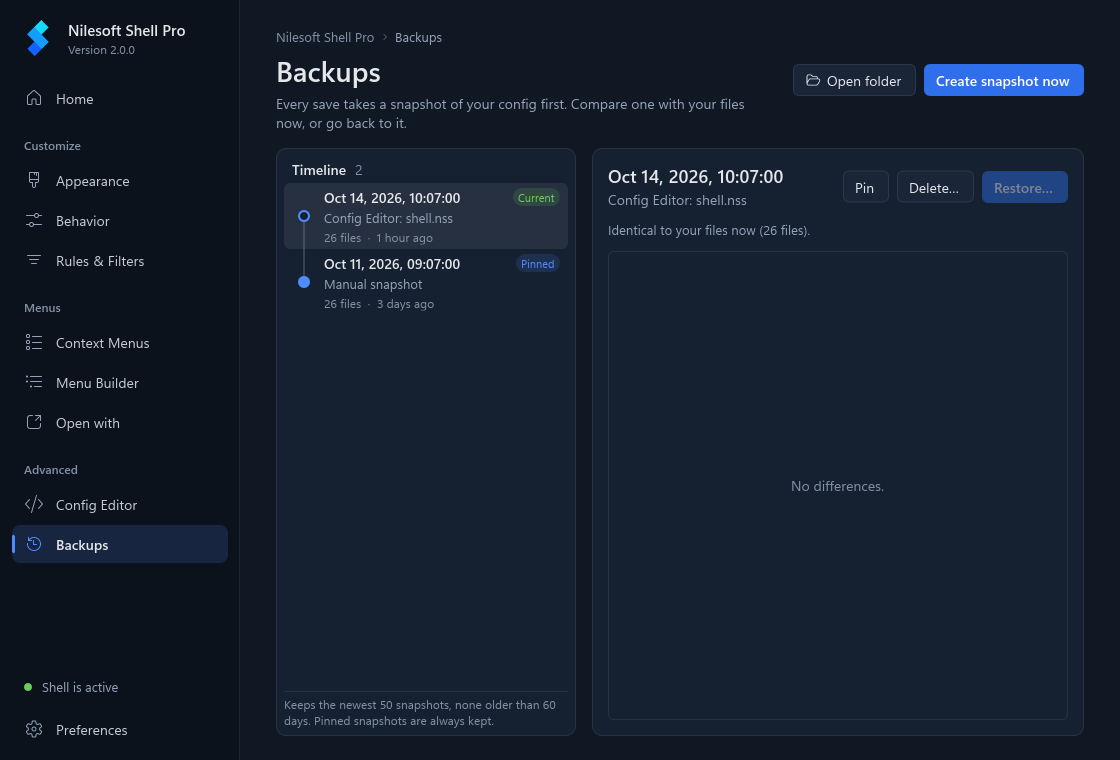
Timeline
The Timeline on the left lists the snapshots, newest first. Each one shows:
- the date and time it was taken, and how long ago;
- why it was taken, for example Config Editor: shell.nss, a list of the settings you changed, Manual snapshot, or before restore …;
- how many files it holds;
- Current on the newest snapshot that matches your files exactly, and Pinned on pinned ones.
To take a snapshot yourself, for example before you edit files in another program, press Create snapshot now.
Compare
Click a snapshot to compare it with your files as they are now. The summary says how many files changed and how many lines were added and removed, or Identical to your files now.
- The changed files are listed with modified, added (new since the snapshot) or removed (gone since the snapshot) and their line counts. Click a file to see its lines.
- Green lines (
+) are in your files now. Red lines (−) are in the snapshot; they come back if you restore it. - The two columns of numbers are the line numbers in the snapshot and in your file.
Restore
- Select the snapshot you want to go back to.
- Press Restore…. The app tells you the date, the number of files and the reason.
- Press Restore to confirm.
Before anything is put back, the app takes a snapshot of your current files (before restore …), so a restore can be undone the same way. Files you added after the snapshot are left alone. Shell picks up the restored files on the next right-click.
Restore… is greyed out on the snapshot marked Current, because your files already match it.
Pin
Old snapshots are removed over time (see Retention). To keep one for good, for example the last version that worked well, select it and press Pin. A pinned snapshot is never removed automatically and can't be deleted until you press Unpin.
Delete
Select a snapshot, press Delete… and confirm. The snapshot's folder is removed from disk; this can't be undone. Pinned snapshots can't be deleted; unpin them first.
Retention
So the folder doesn't grow forever, the app keeps the newest 50 snapshots and removes those older than 60 days. Pinned snapshots are always kept and don't count toward the 50. Old snapshots are removed each time a new one is taken.
The backups folder
Open folder opens the selected snapshot's folder in File Explorer, or the backups folder if none is selected. Each snapshot is a plain copy of your files, so you can also open or copy them from there.
Troubleshooting
- No personal config to back up. Explorer reads the shared configuration in the program folder, which the app never writes to, so there is nothing to snapshot. Press Create personal config.
- No snapshots yet. One is taken before every save. Press Create snapshot now to make the first one.
- The menu stopped working after a change. Restore the newest snapshot taken before that change. Its reason tells you which page or file the change came from.
- Couldn't restore the snapshot. A file may be open in another program that locks it. Close that program and try again.