
Config Editor
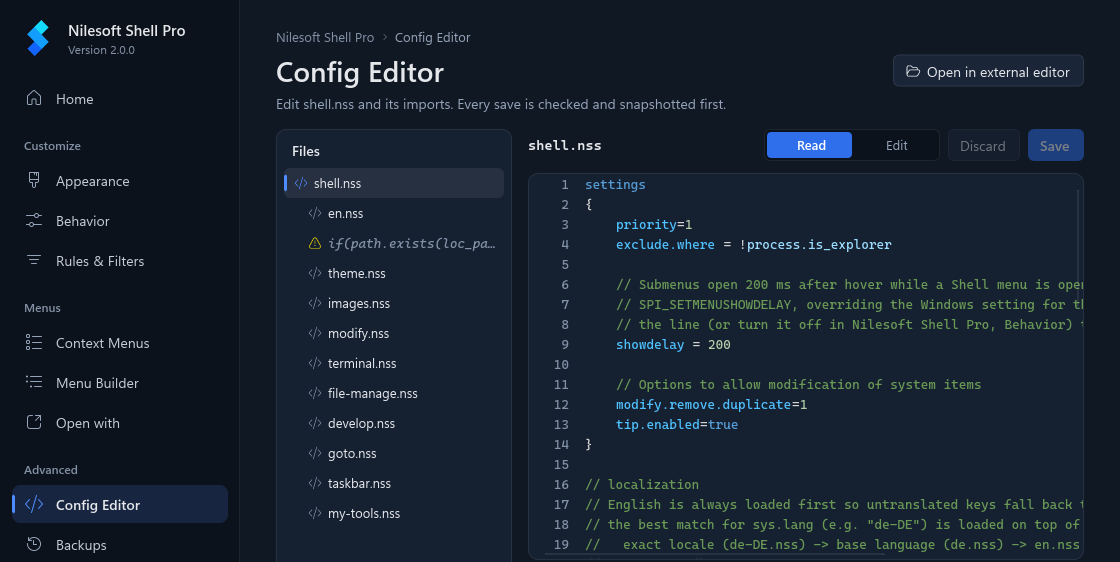
The Config Editor shows shell.nss and every file it imports, and lets you change them as text. Use it
for what the other pages don't cover, or to fix an error Shell reported. Every save is checked by
shell.exe and takes a snapshot first, so a mistake can always be undone.
Files
The Files list on the left is shell.nss with the files it imports indented under it,
in the order of the import lines. The folder they are in is shown at the bottom. Click a file to open it.
| Warning icon | An import that can't be found, or whose path is an expression (shown in italics). Such an entry can't be opened. |
| app | A file the app writes itself (settings-app.nss,
settings-app-menus.nss). Change it on its page instead. |
| Red dot | The file has errors. |
| Blue dot | The file has unsaved changes. |
You can switch between files while you edit: unsaved changes are kept for each file until you save or discard them.
Read and Edit
The Read / Edit switch above the text picks the view:
- Read shows the file with colours and line numbers. Lines with a problem get a marker next to the line number.
- Edit lets you type. The text stays highlighted while you edit: small files on every keystroke, files over 256 KB after a short pause.
A label next to the file name tells you when a file can't be changed here, and why:
| Shared config: read-only | Explorer reads the shared configuration in the program folder, which the app never writes to. See The shared configuration. |
| Managed by the app | One of the app's own files. Change it on Appearance, Behavior, Rules & Filters or Menu Builder. |
| Outside your config folder | An import from somewhere else on the disk. |
| Read-only | A file under Program Files. |
| Not found | The file doesn't exist. |
Tabs
Files that are indented with tab characters keep them. In the edit view each tab is drawn as blank space up to the next tab stop (every 4 columns) and behaves as one character: Backspace or Delete removes the whole tab. Text you copy or cut from the editor has real tabs again, so it pastes correctly into other editors.
Live check
While you type, the app checks your edits with shell -config:check
about a second after you stop. It checks a temporary copy of the whole configuration with your changes in it, so the
menu you are using is not affected. The result is shown above the Problems list:
- Your edits pass the check (or The config passes the check with nothing changed): Shell will load it.
- 2 errors in your edits: Shell would reject the configuration. See Problems.
- The check couldn't run:
shell.exedidn't answer; the message says why.
Problems
The Problems list below the text shows each error and warning with its file and line. Click one to jump there: in the edit view the line is selected, in the read view it scrolls into sight. The last column says where the problem comes from:
- check: found by the live check of the files as they are now, including your unsaved edits.
- shell.log: an error Shell logged the last time Explorer loaded the configuration, with its time. The log keeps old entries, so an error you already fixed can still be listed; compare its time with your last save.
Errors listed on Home open here at their line too.
Saving
- Press Save or Ctrl+S. With several changed files the button reads Save 3 files and saves them together.
- The configuration with your changes is checked again. If it passes, a snapshot of your current files is taken and the files are written. You see Saved shell.nss and the name of the snapshot.
- Shell picks up the change on the next right-click. No restart is needed.
Saving keeps each file's encoding, byte order mark and line endings, so the file looks the same in other editors. Discard throws away the unsaved changes in every file.
Saving with errors. If the check found errors, the app asks first: Save with errors? One error turns the whole Shell menu off until it is fixed and saved again. Press Cancel to go back and fix it, or Save anyway if you want to keep working on it in steps. A snapshot is taken either way, so you can go back from Backups.
Using another editor
Open in external editor opens the current file in the program Windows uses to edit it, or in Notepad if there is none. You can keep the app open while you work there:
- When a file changes on disk and you have no unsaved edits in it, the app reloads it and checks it again.
- When you do have unsaved edits, a banner says Changed outside the app. Reload from disk loads the new version and drops your edits; closing the banner keeps your edits, and saving them overwrites the other version.
The shared configuration
If Explorer reads the configuration in the program folder, the editor shows it read-only with the banner This is
the shared config in the install folder. Press Create personal config to copy it to
%APPDATA%\Nilesoft\Shell. Shell and the editor switch to your copy, which you can then change.
Troubleshooting
- Nothing to save. These files are read-only here. Your changes are in a file the editor can't write (see the label next to the file name). Copy the text into a file in your config folder, or make your personal config first.
- That file isn't in the import tree. A Problems or Home entry points at a file
shell.nssdoesn't import. Open it with Open shell.log on Home or in another editor. - shell.exe was not found, so the config can't be checked. Keep
NilesoftShellPro.exenext toshell.exe, or reinstall. - The menu is gone after a save. Look at Problems, fix the line and save again, or restore the snapshot taken before the save from Backups.