
Menu Builder
The Menu Builder adds your own items and submenus to the right-click menu without writing any code. You fill in a form: the title, an icon, the program to run and where the item shows. The app writes the configuration for you and checks it before saving.
Everything you build here goes into its own file, so the rest of your configuration is never touched. When you open the page again, the app reads that file back into the tree.
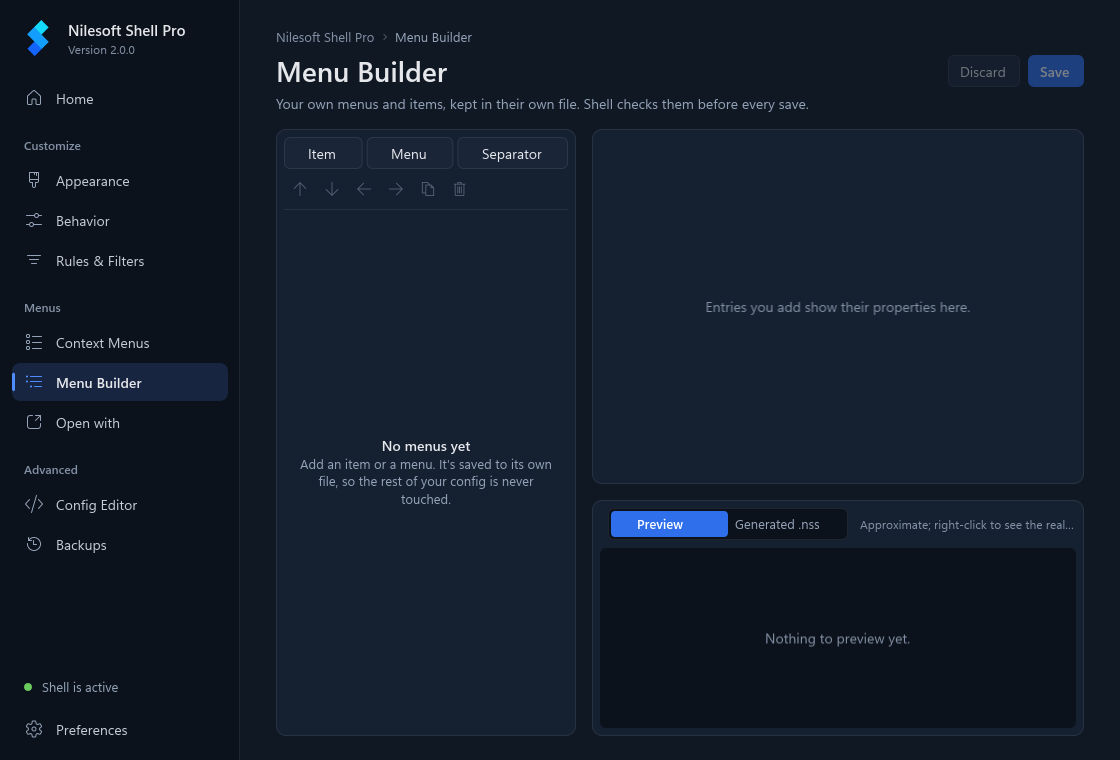
The page at a glance
- The tree (left) lists your entries in menu order. Above it, Item, Menu and Separator add entries, and a row of small buttons moves, indents, duplicates or deletes the selected one. Hover a button to see its name.
- The form (right) edits the selected entry. It has four parts: the title and icon, Where it shows, What it runs (items only) and Look.
- Preview (bottom) draws the menu roughly as Shell will show it, with the selected submenu open. Generated .nss shows the exact text that Save will write.
- Save and Discard are at the top right. Nothing reaches your menu until you save.
Add an item
This example adds Open in Notepad to the menu of every file.
- Click Item. A new entry called New item appears in the tree and is selected.
- In Title, type
Open in Notepad. To give the item an access key (the underlined letter you can press while the menu is open), put&before that letter, as inOpen in &Notepad. - In Command, type
notepad.exe. This is the program the item starts: a program name such asnotepad.exeorcode, or the full path of a program or file. - In Arguments, type
"@sel.path". Shell replaces@sel.pathwith the path of the file you right-clicked. Keep the double quotes, so paths with spaces still work. - Click Save, then right-click a file to see the new item.
An item shows when one item is selected. To show it when several files are selected, set Selection to Any selection. The other choices are Several of one type, Several with one extension and Nothing selected; see mode for what each one means.
Add a submenu
A menu is an entry that opens a submenu. Whatever is inside it shows when you point at it. Where a new entry goes depends on what is selected:
- nothing selected: at the end of the tree;
- a menu selected: inside that menu, at the end;
- an item or separator selected: right after it, at the same level.
To build a Dev tools submenu with two items and a line between them:
- Select the last top-level entry (or nothing, if the tree is empty) and click Menu. Name it
Dev tools. - With Dev tools selected, click Item. The item goes inside the menu; the tree shows it indented.
Name it
Task Managerand set Command totaskmgr.exe. - With Task Manager selected, click Separator. A line is added right after it, still inside the menu. A separator has no settings.
- With the separator selected, click Item again. Name it
Flush DNS, set Command tocmd.exeand Arguments to/c ipconfig /flushdns. - Click Save.
Instead of adding a separator as its own entry, you can also set Separator in the Look part of the form to Before, After or Before and after. That draws a line next to that one entry.
Choose an icon
- Select the entry and click Choose… next to Icon.
- The picker shows the glyphs of Shell's own icon font. Point at one to see its code at the bottom (for example
image=), and click it to use it. - To remove the icon, click No icon. Esc or a click outside the picker closes it without a change.
You can also type into the Icon box: one of Shell's named icons such as
icon.task_manager, a colour, or the path of an icon or program file. The small square next to the box
shows the glyph when it is one from the font, and … for anything else. See
image for every form the value can take.
Choose where it shows
Shows on, under Where it shows, decides which right-clicks show the entry. On a menu, it applies to the whole submenu.
| Everywhere | Files, folders, backgrounds, the desktop and drives: every menu except the taskbar's. This is the default. |
| Files | Any file. |
| Folders | A folder you right-click. |
| Folder background | An empty spot inside an open folder. |
| Desktop | An empty spot on the desktop. |
| Drives | A drive, such as C:. |
| Files with extensions | Only files of the types you list in Extensions, separated
by spaces, like .txt .md .log. A missing dot is added for you, and the list is saved in
lower case. |
| Custom | Three boxes for the raw values: Type (for example
file|dir), Find (name or extension patterns, like *setup*) and
Where (a condition, like sel.count > 1). See
type, find
and where. |
For example, to show Open in Notepad only on text files, set Shows on to Files with
extensions. The Extensions box starts with .txt; add more types if you like.
Run as administrator, and the window
- Tick Run as administrator for a command that needs it, such as Flush DNS above. Windows asks for permission each time you click the item.
- Window sets how the program's window opens: Normal, Hidden, Minimized or
Maximized. Hidden suits a command such as
cmd.exe /c …that would otherwise flash a console window. - Shortcut text is shown at the right of the item, like
Ctrl+E. It is only a label: it doesn't make the keys work. - Tooltip is the text that appears when you rest the mouse on the entry.
Reorder and indent
Select an entry, then use the buttons above the tree:
| Move up, Move down | Swap it with the entry above or below, within the same menu. |
| Indent | Move it into the menu right above it, as that menu's last entry. Only possible when the entry above is a menu. |
| Outdent | Move it out of its menu, to just after that menu. |
| Duplicate | Add a copy right after it. A copied menu keeps its contents. |
| Delete | Remove it. Deleting a menu removes everything inside it. |
A button that can't be used for the selected entry is greyed out.
Save, discard and undo
- Save checks your menus with Shell and writes them. If Shell would reject them, nothing is written and a message says what is wrong and on which line.
- Discard throws away every change since the last save.
- To undo a change you already saved, open Backups. Each save takes a snapshot first, named for example Menu Builder: 1 menu, 3 items. Select the snapshot from before your change and click Restore….
- To remove all your menus at once, turn off Your menus on the Context Menus page. The file is kept, so you can turn it back on.
Example: from the form to the menu
Here are both tasks above together, with two extra settings: Open in Notepad only on .txt
files, and Dev tools only on the desktop, with an icon.
- Click Item. Title
Open in Notepad; Shows on Files with extensions, Extensions.txt; Commandnotepad.exe; Arguments"@sel.path". - With Open in Notepad selected, click Menu. Title
Dev tools; Choose… an icon; Shows on Desktop. - With Dev tools selected, click Item. Title
Task Manager; Commandtaskmgr.exe. - With Task Manager selected, click Separator.
- With the separator selected, click Item. Title
Flush DNS; Commandcmd.exe; Arguments/c ipconfig /flushdns; Window Hidden; tick Run as administrator. - Click Save.
The tree now reads Open in Notepad, then Dev tools with Task Manager, a separator and Flush DNS indented under it. Generated .nss shows what is written (the icon code is the one you picked):
// generated by Nilesoft Shell Pro, do not edit by hand
// Edit these menus on the Menu Builder page of Nilesoft Shell Pro.
item(title="Open in Notepad" type='file' find='.txt' cmd='notepad.exe' args='"@sel.path"')
menu(title="Dev tools" image= type='desktop')
{
item(title="Task Manager" cmd='taskmgr.exe')
separator
item(title="Flush DNS" cmd='cmd.exe' args='/c ipconfig /flushdns' admin window=hidden)
}In the menu:
- Right-click a
.txtfile: the menu has Open in Notepad, which opens that file in Notepad. Right-click any other file, or select two text files: the item isn't there. - Right-click an empty spot on the desktop: the menu has Dev tools with its icon and an arrow. Point at it to open the submenu: Task Manager, a line, then Flush DNS. Flush DNS asks for administrator permission, then runs with its window hidden.
- Right-click a file or folder: Dev tools isn't there, because it shows only on the desktop.
What it writes
For the curious: each entry becomes one line of Shell's menu language, in tree order.
- An item becomes
item(...), a menu becomesmenu(...)followed by its entries in{ }, and a separator becomesseparator. - The form fields map to properties: Title to
title, Icon toimage, Shows on totype,findandwhere, Selection tomode, Command tocmd, Arguments toargs, Run as administrator toadmin, and Window, Shortcut text, Tooltip and Separator towindow,keys,tipandsep. Empty fields are left out. - If the file has properties the form doesn't edit (because someone wrote them by hand), the entry shows them under Kept as written, and they are saved unchanged. Lines that aren't menus, items or separators can't be kept: a banner warns that they will be dropped on the next save.
Where your changes are saved
- Your menus are written to
imports\settings-app-menus.nssin your configuration folder (%APPDATA%\Nilesoft\Shell). The file is generated: edit it on this page, not by hand. - The first save adds
import 'imports/settings-app-menus.nss'at the end ofshell.nss, so it loads after the bundled menus. If that line is already there, even turned off, it is left alone. - Before writing, the new configuration is checked with
shell -config:check. A configuration Shell would reject is not written. - Each save first takes a snapshot in Backups.
- Shell reloads the configuration by itself when the file changes; there is no restart step.
- If Explorer uses the shared configuration in the program folder, the page is read-only and offers Create personal config. Program Files is never written to.
Troubleshooting
| The new item doesn't show at all | Close the menu and right-click again. If it still isn't there, use Restart Explorer on the Home page. If the page shows Your menus are turned off, click Open Context Menus and turn Your menus back on. |
| It shows in some places but not where I expect | Check Shows on: an item set to Files isn't on folders, and Desktop is only the empty desktop. Check Selection too: with the default, the item hides when several items are selected. A submenu's Shows on also limits every entry inside it. |
| Clicking the item does nothing | The command can't be found or doesn't accept the arguments. Use the
full path of the program, and put "@sel.path" in quotes. |
| Not saved: Shell would reject these menus | Usually a value typed in a Custom box, such as an unfinished Where condition. The message names the line; fix it in the form and save again. |
| Part of the file can't be shown here | The file has lines the page doesn't understand, probably from an edit by hand. They will be dropped when you save. Copy them elsewhere first if you need them. |