
Behavior
The Behavior page of Nilesoft Shell Pro sets how Shell's menu opens, its tooltips, menu screenshots, and what Shell does to the items Windows and other apps put in the menu. Like Appearance, changes wait until you press Save.
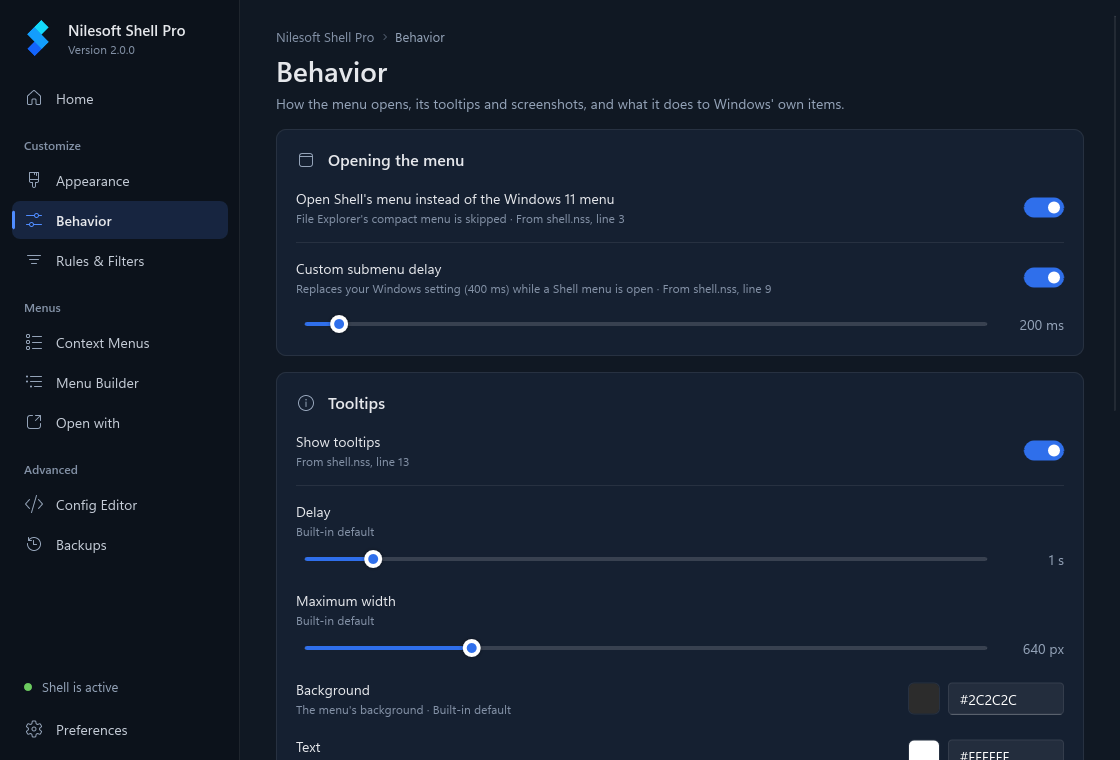
What's on the page
Under each setting a grey line says where its value comes from: From shell.nss, line 9, Built-in default, Set by this app or Changed here · not saved yet. A Reset link next to the name removes the app's value, so your file's value (or the default) applies again after saving.
| Setting | What it does | Default |
|---|---|---|
| Opening the menu | ||
| Open Shell's menu instead of the Windows 11 menu | On: right-clicking in File Explorer opens Shell's menu straight away, and the Windows 11 compact menu is skipped. Off: Windows 11 shows its compact menu first. | On |
| Custom submenu delay | How long you hover over an item before its submenu opens, from 0 to 4000 ms. While a Shell menu is open, this replaces your Windows setting. Off: the Windows setting applies (the line shows its value, for example 400 ms). | On, 200 ms in the shipped shell.nss |
| Tooltips | ||
| Show tooltips | Shows an item's tip when you hover over it. | On in the shipped
shell.nss |
| Delay | How long to hover before the tip shows, 0 to 10 seconds. | 1 s |
| Maximum width | The widest a tip gets before its text wraps, 200 to 2000 px. | 640 px |
| Background, Text | The tip's colours. | The menu's own background and text colours |
| Screenshots | ||
| Print Screen saves the open menu | While a Shell menu is open, Print Screen saves a picture of it. | Off |
| Folder | Where the pictures go. Choose… picks a folder. | Your Windows Screenshots folder |
| Windows' own items | ||
| Remove duplicate items | Hides an item that appears twice. | On in the shipped
shell.nss |
| Remove disabled items | Hides items that are greyed out. | Off |
| Remove their separators | Hides the separator lines Windows puts between its items. | Off |
| Icons on Windows' items | Off, On, or Auto, which adds icons to known items that have none. | On |
| Icons on Shell's own items | Shows the icons of the items Shell adds. | On |
Turn the submenu delay off
The shipped configuration opens submenus 200 ms after you hover. While a Shell menu is open, that replaces the delay set in Windows. To use your Windows setting instead:
- Open Behavior.
- Under Opening the menu, turn Custom submenu delay off. The line under it now says Off: your Windows setting applies (… ms).
- Save.
Your shell.nss is not changed: the app writes showdelay = auto over it (see
What it writes). Turning the switch on again and saving removes that line, so the
200 ms in shell.nss applies again. If your files set no delay, turning the switch on starts the slider at
your Windows value; move it to choose another.
Make submenus open faster or slower
- Make sure Custom submenu delay is on.
- Move the slider under it. It moves in steps of 50 ms; 0 ms opens submenus as soon as you hover.
- Save.
Turn tooltips on or off
- Under Tooltips, turn Show tooltips on or off.
- When it is on, set Delay and Maximum width with the sliders.
- To change the colours, click the Background or Text swatch, or type a value
such as
#202020in the box next to it and press Enter. - Save.
Only items that have a tip show one. Tips come from the tip property of an item in your
.nss files; this page decides whether and how they show, not what they say.
Save menu screenshots
- Under Screenshots, turn on Print Screen saves the open menu.
- To use another folder than your Windows Screenshots folder, click Choose… next to Folder and pick one.
- Save.
- Right-click somewhere to open a Shell menu and press Print Screen.
Each picture is a PNG file whose name is screenshot_ followed by the date and time.
To go back to the Screenshots folder, click Reset next to Folder and save.
Tidy up Windows' own items
The switches under Windows' own items apply to every menu at once. To hide or rename one item, use the Context Menus page instead.
- Turn on what you want: remove duplicate items, disabled items, or Windows' separators.
- Choose whether Windows' items get icons: Off, On or Auto.
- Save, then right-click to check.
Saving
Saving works as on the Appearance page: Save (or Ctrl+S) in the footer, and
Discard to drop every unsaved change. The new configuration is checked with
shell -config:check before anything is written, and a snapshot of
your files is taken first. Shell picks up the change on the next right-click.
What it writes
Behavior settings go to the settings block of imports\settings-app.nss, the file the app
owns. It is imported at the end of shell.nss, so its values win over yours, and only the settings you
change are in it. After turning Custom submenu delay off over the shipped
showdelay = 200:
// generated by Nilesoft Shell Pro, do not edit

settings
{
	showdelay = auto
}
The other settings on this page are written with these keys:
| Opening the menu | priority, showdelay (in ms) |
| Tooltips | tip.enabled, tip.time (in seconds, for example 1.5),
tip.width, tip.default = [#202020, #FFFFFF] (background, then text) |
| Screenshots | screenshot.enabled, screenshot.directory |
| Windows' own items | modify.remove.duplicate, modify.remove.disabled,
modify.remove.separator, modify.image (0 off, 1 on, 2 auto), new.image |
See Settings for what each key does in Shell.
Troubleshooting
The change doesn't show.
- If the footer still counts unsaved changes, press Save. Shell reads the new settings on the next right-click.
- If the footer says Shell rejected the config, the reason names a file and line. Fix that line in the Config Editor and save again.
- Tooltips show only on items that have a tip.
Submenus still open at the old speed. With Custom submenu delay off, the Windows setting applies. Turn the switch on and set the delay here.
A setting says it is set by an expression. One of your files sets it with an expression instead of a plain value. The line under it names the file and line, with a link to the Config Editor. Changing it here writes the app's own value, which wins; your file is not changed.