
Menu map
The Menu map shows the right-click menu for a place you choose, item by item: the items from your Shell configuration and the items Windows and your installed programs add. For each item it tells you where it comes from and which rules change it. You can also hide, rename or move items from here.
Open it from the sidebar: Menus > Menu map, between Context Menus and Menu Builder.
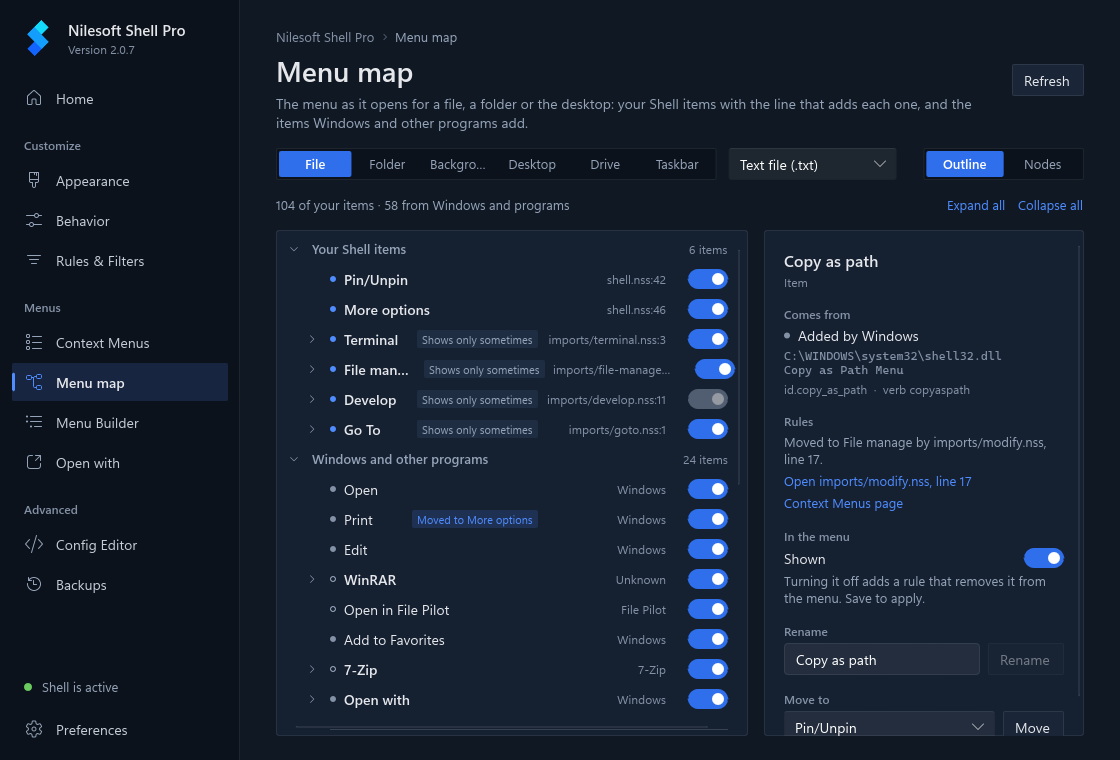
Choose a place
The switcher at the top chooses which right-click menu is shown:
| File | A file of the type you pick next to it: Text file (.txt), Image (.png), Program (.exe), Archive (.zip), PDF (.pdf) or Music (.mp3). Programs often add items only for some types, so the menu can differ from one type to the next. |
| Folder | A folder you right-click. |
| Background | An empty spot inside an open folder (the folder background). |
| Desktop | An empty spot on the desktop. |
| Drive | A drive, such as C:. |
| Taskbar | An empty spot on the taskbar. |
Refresh reads the menu again, for example after you install a program or edit a file by hand.
What the page lists
The menu is shown in two groups:
- Your Shell items: the items and submenus from your configuration, in the order they are written.
Each one shows its file and line, for example
imports/file-manage.nss:12. - Windows and other programs: the items Windows and your installed programs add. Each one is labelled with who added it: Windows, or the program's name, such as 7-Zip. Unknown means Shell couldn't tell.
To read Windows' items, Shell builds the same menu Explorer would build, off-screen. For a file it uses a sample file
in %TEMP%\NilesoftShellPro\menu-map; for a folder, that folder; for a drive, your system drive. No window
or menu appears, and no item is run. For the folder background and the desktop, the list also has the items the folder
window adds itself, such as View, Sort by, Group by, Refresh and Paste.
The taskbar's own menu is built by Windows itself, so for the taskbar only your Shell items are listed.
Tags
Small tags next to an item show what your rules do to it:
| Hidden | A rule hides it, so it isn't in the menu. |
| Moved to … | A rule moves it into another menu, for example Moved to File manage. |
| Renamed to … | A rule shows it under another title. |
| May be hidden, A rule may change it | A rule applies only for some selections or windows, such as
where=sel.count>1 or window.is_desktop. Without a real selection the page can't know,
so it says may. |
| Shows only sometimes | One of your items has a where or find
condition, so it shows only when that condition is met. |
Outline and Nodes
Two views show the same menu:
- Outline (the default) is a list. Click a submenu to expand or collapse it, or use Expand all and Collapse all. Each item has its switch on the row.
- Nodes shows each open menu as a panel, from left to right, with a line from the item that opens a submenu to that submenu's panel. Click a submenu item to open its panel. Drag or scroll to move around.
The item's details
Click an item to see its details at the right:
| Comes from | Windows, or the program and its DLL, or for your own items the config file and line. Click the file and line to open the Config Editor there. |
| Shows when | For your items: the where, find, mode,
type and vis values that decide when it shows. |
| Rules | Each rule that hides, moves or renames the item, with a link to open the rule in the Config Editor and a link to the Context Menus page. |
| In the menu | The switch that hides or shows the item. |
| Rename | A new title for the item. |
| Move to | Another menu to put it in (Windows and program items only). |
| Code | The code behind the item. |
Hide, rename or move a Windows item
This works for items from Windows and from other programs.
- Select the item.
- Turn off In the menu to hide it. Or type a new title under Rename, or pick a menu under Move to. The list has your Shell menus, such as File manage or More options, and Windows submenus, such as Send to.
- The footer at the bottom of the window counts the change. Click Save, or Discard to drop your changes.
- Right-click again to see the result.
To undo a change made here, turn the switch back on, or use Use the original title or Put it back where Windows has it, then save.
Some items can't be changed this way:
- An item hidden by a rule in your own configuration, such as one in
imports/modify.nss. The panel names the rule and links to the Context Menus page, where that rule has a switch. - An item whose title changes with what is selected, such as 7-Zip's Add to "name.7z". A rule can't name it, so the panel suggests the Config Editor.
Change one of your Shell items
Changes to your own items are saved right away, without the footer.
- Turn off In the menu to hide the item. The page adds
vis=vis.removeto that item's line; turning the switch back on removes exactly that. If the item already has its ownvis, the switch can't be used and the panel suggests Edit code. - Rename changes the item's
title. - Edit code opens a small editor with just that item's code, or the whole
menublock for a submenu, with syntax colours. Check and save checks the whole configuration with Shell, takes a snapshot, and changes only that part of the file. The rest of the file stays the same, byte for byte. - Open in the Config Editor opens the file at that line.
To move one of your items, use Edit code or the Menu Builder.
What it writes
For the curious: hiding, renaming or moving a Windows item writes a modify or remove rule. When Shell knows the item's Windows id, the rule uses it, so it works in every Windows language:
remove(where=this.id==id.cast_to_device)Otherwise the rule uses the item's exact title.
These rules go into their own file, imports/settings-app-map.nss. It is imported near the top of
shell.nss, before the other configuration files, so it also works for items the bundled
modify.nss already moves. Hiding Send to is one example.
The Context Menus page lists these rules under
imports/settings-app-map.nss, each with a switch, and lists the file as the module Menu map.
Where your changes are saved
- Rules for Windows items go to
imports\settings-app-map.nss. Changes to your own items go to the file the item is written in. Only files in your configuration folder (%APPDATA%\Nilesoft\Shell) are changed. - Before writing, the configuration is checked with
shell -config:check. A configuration Shell would reject is not written. - Each save first takes a snapshot in Backups.
- If Explorer uses the shared configuration in the program folder, the page is read-only and offers Create personal config. Program Files is never written to.
Limits
- Rules that depend on the selection or the window are marked may. The page doesn't decide them.
modeconditions are not tested.- Your Shell items are listed in config order, apart from Windows' items. In the real menu Shell places them with
poswhen the menu opens. - The
modify.remove.duplicatesetting is not applied in the map.
Troubleshooting
| An item I see when I right-click isn't listed | The page uses a sample file, so items a program adds only for some files may be missing. Try another type in the switcher, then Refresh. |
| The menu didn't change after saving | Close the menu and right-click again. If it still looks the same, use Restart Explorer on the Home page. |
| The switch is greyed out | The item is hidden by a rule in your own configuration, or it has its own
vis. The panel says which, and links to where you can change it. |