
Context Menus
The Context Menus page turns whole parts of Shell's menu on or off: the bundled menus such as Terminal or Go to, and the rules that hide, move or rename Windows' own items. Each one has a switch, so you can try a change without editing any file. Nothing is deleted: turning something off comments its line out, and turning it back on gives you the original text.
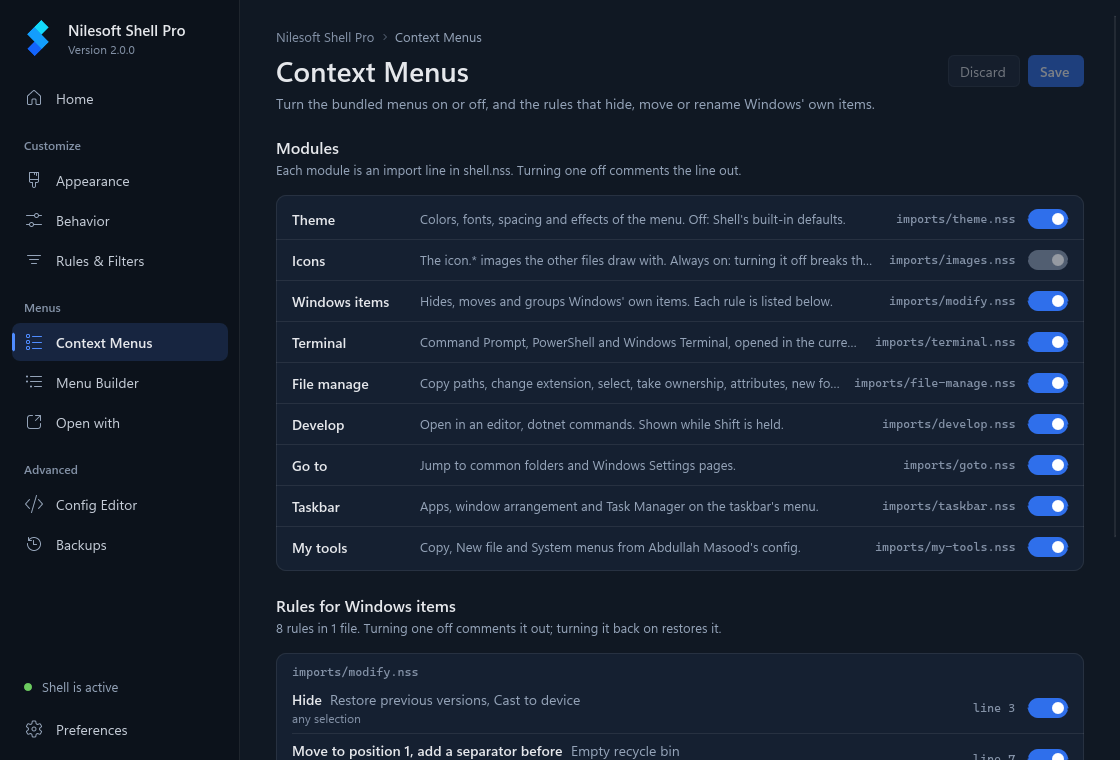
Turn a module on or off
A module is a file that shell.nss imports. Each one adds a menu or a group of settings. The
Modules list shows them in the order shell.nss imports them:
| Theme | Colors, fonts, spacing and effects of the menu. Off: Shell's built-in defaults. |
| Icons | The icon.* images the other files draw with. Always on: turning it off breaks
them. |
| Windows items | Hides, moves and groups Windows' own items. Each rule is listed under Rules for Windows items. |
| Terminal | Command Prompt, PowerShell and Windows Terminal, opened in the current folder. |
| File manage | Copy paths, change extension, select, take ownership, attributes, new folder and file. |
| Develop | Open in an editor, dotnet commands. Shown while Shift is held. |
| Go to | Jump to common folders and Windows Settings pages. |
| Taskbar | Apps, window arrangement and Task Manager on the taskbar's menu. |
| My tools | New file and System menus from Abdullah Masood's config. |
| Your menus | The menus and items you built on the Menu Builder page. Listed once you have saved there. |
| Open with | Editors and terminals you picked on the Open with page. Listed once you have saved there. |
Any other file your shell.nss imports is listed too, by its file name, as Imported from
<path>. The settings written by the Appearance and Behavior pages are not a module and aren't listed.
To turn a module off:
- Turn off its switch. A small dot next to the name marks the change, and the top of the page shows how many files changed.
- Click Save. Discard undoes the changes you haven't saved.
- Right-click again to see the menu without it.
The file name at the right of each row (for example imports/goto.nss) opens that line in the Config
Editor.
Turn a rule for Windows' own items on or off
Shell can't remove Windows' own items from your PC, but its configuration can hide, move or rename them in Shell's menu. Those instructions are modify and remove rules. Rules for Windows items lists every one in your configuration, grouped by file, in plain words:
- what it does, such as Hide, Move to “Pin/Unpin”, at the bottom or Rename to …;
- which items it applies to, such as Restore previous versions, Cast to device;
- when it applies, such as any selection or Recycle bin.
The bundled imports/modify.nss has eight rules. For example, one hides Restore previous
versions and Cast to device, and two others group the Pin and Unpin items into a Pin/Unpin
submenu.
- Find the rule and turn its switch off to stop it. The Windows item it hid comes back, or the item it moved returns to its usual place.
- Click Save.
- Right-click again to check the result.
line 12 at the right of a rule opens the file at that line in the Config Editor.
The Open with page writes remove rules too, for the items it
hides, and they are listed here under imports/settings-app-openwith.nss. Change those on the Open with
page: it rewrites its file each time you save there.
Why some switches can't be used
A greyed-out switch means the page can't turn that line on or off safely. The reason is shown under the rule, or in the module's description:
| Icons is always on | The other modules draw their icons with it. Turning it off would break them. |
| Read-only | The file is the shared configuration in the program folder, or it is outside your
configuration folder. Program Files is never written to. If Explorer uses the shared configuration, the page
offers Create personal config, a copy in %APPDATA%\Nilesoft\Shell you can
change. |
| Inside a menu | The rule is written inside a menu block. The page only switches
rules written at the top level of a file. |
| Shares a line with other code | Something else is on the same line, so commenting out the line would turn that off too. The same goes for a module whose import shares its line, or spans several lines. |
| Complex: edit it in the Config Editor | The rule uses a condition the page can't put into plain
words, such as sel.count > 2. It shows the condition, and Items matching an expression
when it can't tell which items are affected. |
To change one of these, click its line link and edit it in the Config Editor.
What it writes
For the curious: turning something off puts // in front of its lines, which makes Shell skip them.
A module's import line in shell.nss:
// import 'imports/goto.nss'A rule that spans several lines gets // on each one:
// modify(mode=mode.multiple
// 	where=this.id(id.restore_previous_versions,id.cast_to_device)
// 	vis=vis.remove)
Turning it back on removes exactly those characters, so the file is the same as before, byte for byte. Nothing else in the file changes.
Where your changes are saved
- Unlike the Menu Builder and Open with pages, this page has no file of its own. It changes the files the lines are
in:
shell.nssfor modules, and the file of each rule, such asimports\modify.nss. Only files in your configuration folder (%APPDATA%\Nilesoft\Shell) are changed. - Before writing, the configuration is checked with
shell -config:check. If it would fail to load, nothing is written and a message says what is wrong and where. - Each save first takes a snapshot in Backups, named after the changes, for example Context Menus: turn off Go to. To undo a saved change, restore the snapshot from before it, or simply turn the switch back on and save.
Troubleshooting
| The menu didn't change | Close the menu and right-click again. If it still looks the same, use Restart Explorer on the Home page. |
| A Windows item is still there after turning a rule on | The rule may apply only in some places, such as a multiple selection or the Recycle bin; the line under the rule says when. Windows can also show the item under a different name than the rule looks for. |
| My Menu Builder items or Open with items disappeared | Your menus or Open with is turned off in Modules. Turn it back on and save. |
| Not saved: the config would fail to load | Another part of the configuration has an error that the change brings out. The message names the file and line; fix it in the Config Editor, or click Discard. |
| The page doesn't show a rule I added by hand | Only modify and remove rules
are listed. If you added it while the page was open, save or discard your changes here,
then switch to another page and back. |