
Open with
The Open with page adds Open in <app> items for your editors and terminals, so a file or folder opens in Zed, Cursor or PyCharm as easily as in VS Code. It finds the apps installed on this PC, and you switch on the ones you want. The same page can also hide items that other programs put in the menu, such as VLC or 7-Zip.
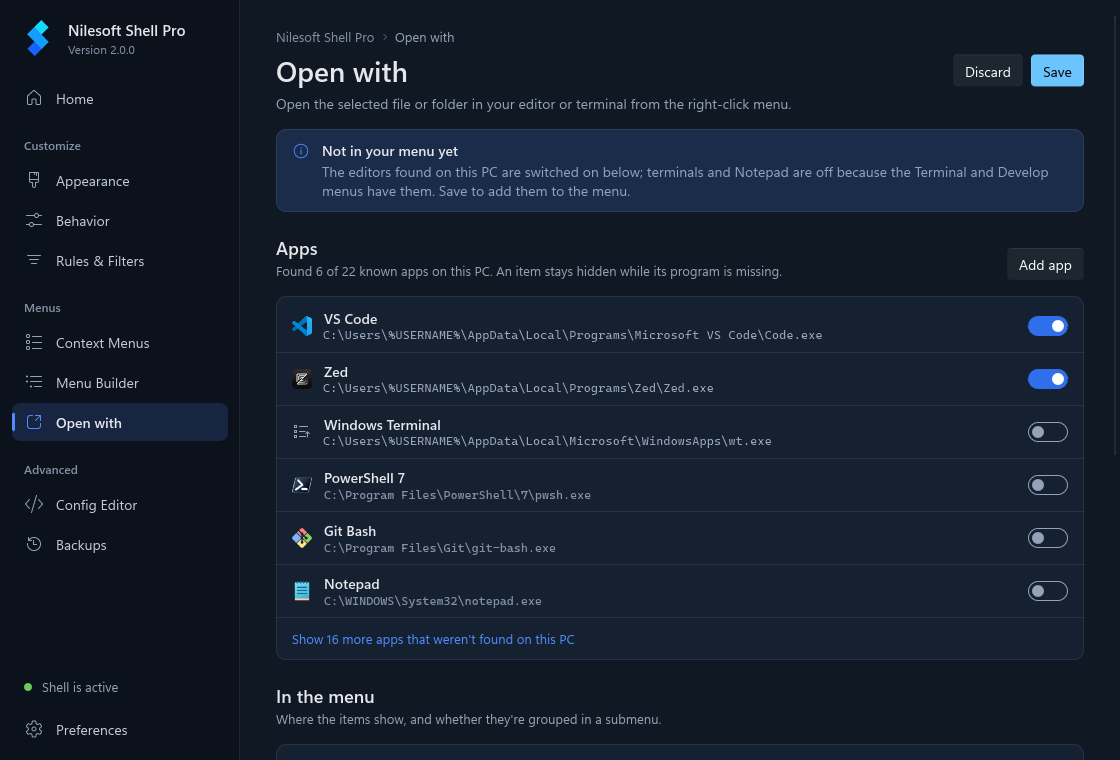
The apps it knows
The page looks for these apps in their usual install folders, in JetBrains Toolbox scripts and on
PATH. It only reads; it never installs or changes anything.
- Editors: VS Code, VS Code Insiders, Zed, Cursor, Windsurf, Sublime Text, Notepad++, IntelliJ IDEA, PyCharm, WebStorm, Rider, CLion, GoLand, PhpStorm, RustRover, Neovim Qt, Neovim (in a Windows Terminal tab) and Visual Studio.
- Terminals and Notepad: Windows Terminal, PowerShell 7, Git Bash and Notepad.
The caption above the list says how many were found, for example Found 4 of 22 known apps on this PC. Apps that weren't found are folded away; click Show … more apps that weren't found on this PC to see them.
The first time you open the page, the editors found on this PC are switched on. Terminals and Notepad are off, because the Terminal and Develop menus have them already. Nothing is in your menu until you click Save.
Switch an app on or off
- Find the app in the Apps list. Each row shows its icon, its name and the program it found.
- Turn its switch on. To change its settings, click the row: its settings open under it.
- Click Save, then right-click a file or folder to see Open in <app>.
If an app is installed but wasn't found (a portable copy, for example), its row is greyed out with a
Locate… button. Click it, pick the app's program (.exe, .cmd, .bat
or .com), and the app is switched on.
Each app's settings:
| Name | Shown as Open in <name>, or as the name alone inside a submenu. |
| Program | The program the item starts. Browse… picks it. |
| Arguments | What is passed to the program; see Arguments. |
| Icon | Empty uses the program's own icon. Browse… picks an .ico,
.exe or .dll instead. |
| Shows for | Everything the menu shows on, Files only, Folders only (folders, the
folder background and the desktop) or Files with these extensions, with a box for a list such as
.py .js .md. |
| Run as administrator | Windows asks for permission each time you click the item. |
Under the settings, Test shows the exact command line the item would run for a sample file and folder in your Documents folder. It never starts the program. Move up and Move down change the order of the items in the menu.
Add an app that isn't listed
- Click Add app above the list. A row called New app, marked Added by you, is added at the end and opened.
- Type its Name.
- Click Browse… next to Program and pick the program.
- Check Arguments. It starts as
{path}, which suits most editors. - Optionally pick an Icon, set Shows for, or tick Run as administrator.
- Click Test to check the command line, then Save.
To delete an app you added, open its row and click Remove. The apps the page knows can't be removed, only switched off.
If something is missing, the row says what, and the app stays out of the menu until it's fixed: Give it a name; it's the item's title., Pick the program it runs., List at least one extension, like .py .js, or Doesn't show: the menu isn't on the places it's for. (for example, an app set to Files only while the menu shows on folders only).
Arguments
Arguments use placeholders that are filled in when you click the item:
{path} | The item you right-clicked, in quotes. |
{paths} | Every selected item, each in quotes. An app that uses it also shows when several items are selected. |
{dir} | The folder the item is in, or the folder itself when you right-click a folder or its background. |
{name} | The item's name. |
Examples from the built-in apps: editors use {path}; Windows Terminal uses -d {dir};
PowerShell 7 uses -NoExit -WorkingDirectory {dir}; Git Bash uses --cd={dir}. You can use
' or ` quotes in the arguments, but not both.
What switching an app off also hides
Some apps put their own items in the menu when you install them: PowerShell 7 adds a PowerShell 7 submenu, Git adds Open Git Bash here and Open Git GUI here, VS Code adds Open with Code. The page finds these and ties them to the app's switch:
- While the app is on, its row says Switching it off also hides: ….
- When you switch it off, the row says Also hides: …, and after you save, those items are gone from Shell's menu along with Open in <app>.
- To hide only the item this page adds and keep the app's own items, open the row and tick Keep the app's own menu items when it's off.
- An app that is off only because it was never switched on (the default for terminals and Notepad) leaves its own items alone. The row says Off by default, its own still show: ….
The page matches an item to an app by its program: the item's command, icon or shell extension is the app's program or lives in the app's install folder. Shared folders such as Program Files itself or WindowsApps don't count. When that doesn't tell, it uses the names the app is known to use. If an app installed later adds new items, the page hides them too the next time it opens, as long as you had switched the app off.
Nothing in the registry changes: the items are hidden in Shell's menu only, and switching the app back on shows them again.
Other apps' menu items
The Other apps' menu items list shows what other programs add to the menu for files, folders, the folder background and drives, such as VLC, File Pilot or 7-Zip. It is read from the registry. Windows' own items and Shell's are left out, and so are the items of the apps in the list above, which go with their app's switch.
- Find the item. Each row shows its title, where it appears and the program behind it. Shift only marks an item Windows shows only while Shift is held.
- Turn its switch off to hide it.
- Click Save.
A shell extension (marked Title shown by the app) sets its own title, so the page can only guess it from the
extension's name. When you switch one off, a Title to hide box appears: type the title exactly as
the menu shows it. A title that contains " or | can't be matched, so nothing is hidden;
the row says so.
Leftovers from uninstalled programs are listed first. Their program is gone (an uninstaller left the menu entry behind), so the item does nothing when clicked. The row says Program not found: …. Click Hide on one, or Hide all … above them, then Save.
An item you hid that is no longer in the registry stays in the list with No longer in the registry. The rule stays until you switch it back on.
Where the items appear
Under In the menu:
- Each app that is switched on is its own Open in <name> item, in the order of the list. They go right under WinRAR; without WinRAR, under Explorer's Open in new window; otherwise (a file's menu, or Windows in another language) at the top of the menu.
- Group in an "Open in" submenu puts them all in one submenu in that same place instead. Submenu title sets its name (Open in by default). Windows already has an Open with item on files, so a different title tells them apart.
- Shows on picks where the items appear at all: Files, Folders, Folder background and Desktop. The first three are on by default.
The preview below draws the resulting menu for A file, A folder or Background, with Explorer's own items greyed. It is approximate; right-click to see the real menu. Generated .nss shows the text that is saved.
A file saved by an earlier version of the page (an Open in submenu in the middle of the menu, or items at the very top) is rewritten this way when the page opens. A snapshot keeps the old layout.
The Develop menu's editors
The bundled Develop menu has its own Editors submenu with VS Code and Notepad. It only shows while
Shift is held, so it is left alone by default. To keep your editors in one place, turn on Hide
Develop › Editors. The lines in develop.nss are commented out, not deleted.
What it writes
For the curious: each app becomes an item after a
comment line naming it. This is VS Code, as the app's tests write it:
// generated by Nilesoft Shell Pro, do not edit by hand
// Edit these items on the Open with page of Nilesoft Shell Pro.
// options: layout=top pos=after-winrar show=file|dir|back title="Open in"

// app=vscode
item(title="Open in VS Code" image='@user.localappdata\Programs\Microsoft VS Code\Code.exe' type='file|dir|back' where=path.exists('@user.localappdata\Programs\Microsoft VS Code\Code.exe') cmd='@user.localappdata\Programs\Microsoft VS Code\Code.exe' args='@sel.path.quote' pos=indexof('"WinRAR"|"Open in new window"', 1, 'top'))imageis the program's icon.where=path.exists(...)hides the item when the program is uninstalled (see where).- The placeholders become Shell variables:
{path}is@sel.path.quote,{paths}is@sel(true),{dir}is"@sel.dir"and{name}is@sel.name. pos=indexof('"WinRAR"|"Open in new window"', 1, 'top')is the placement described above (see indexof).- An app that is off stays in the file as a commented-out line, so its settings are kept.
- Hidden items are
removerules that match the whole title, such asremove(find="\"PowerShell 7\""). An app's own items follow an// own app=<id> verb=<key>line and are commented out while the app is on; other apps' items follow a// hide …line.
Where your changes are saved
- Saving writes
imports\settings-app-openwith.nssin your configuration folder (%APPDATA%\Nilesoft\Shell). The file is generated: change it on this page, not by hand. - The first save adds
import 'imports/settings-app-openwith.nss'at the end ofshell.nss, once. - Before writing, the configuration is checked with
shell -config:check; a configuration Shell would reject is not written. - Each save first takes a snapshot in Backups, named for example Open with: VS Code, Zed as top-level items. To undo a saved change, restore the snapshot from before it. Discard throws away changes you haven't saved.
- The registry is never changed. Hiding an item only adds a rule to this file.
Troubleshooting
| The items don't show | Close the menu and right-click again. If they still aren't there, use Restart Explorer on the Home page. If the page shows These items are turned off, click Open Context Menus and turn Open with back on. |
| One app's item is missing | The item hides while its program is missing, for example after the app was uninstalled or moved. Use Locate… or Browse… to point at the program again. Also check its Shows for and the Shows on boxes under In the menu. |
| The items are at the top of the menu, not under WinRAR | That is expected on a file's menu, when WinRAR isn't installed and the menu has no Open in new window, and on Windows in another language, where Explorer's item has a translated title. |
| A hidden item is still there | A shell extension's title is a guess. Correct Title to hide to match the menu exactly, and save. |
| The item opens the program but not the file | Check Arguments with
Test. Most editors need {path}; terminals usually need {dir}. |