
Rules & Filters
The Rules & Filters page of Nilesoft Shell Pro decides where Shell's menu appears. Everywhere else, Windows shows its own menu. Use it to keep Shell out of a program, for example a game or another file manager, or to keep Shell to File Explorer and the desktop.
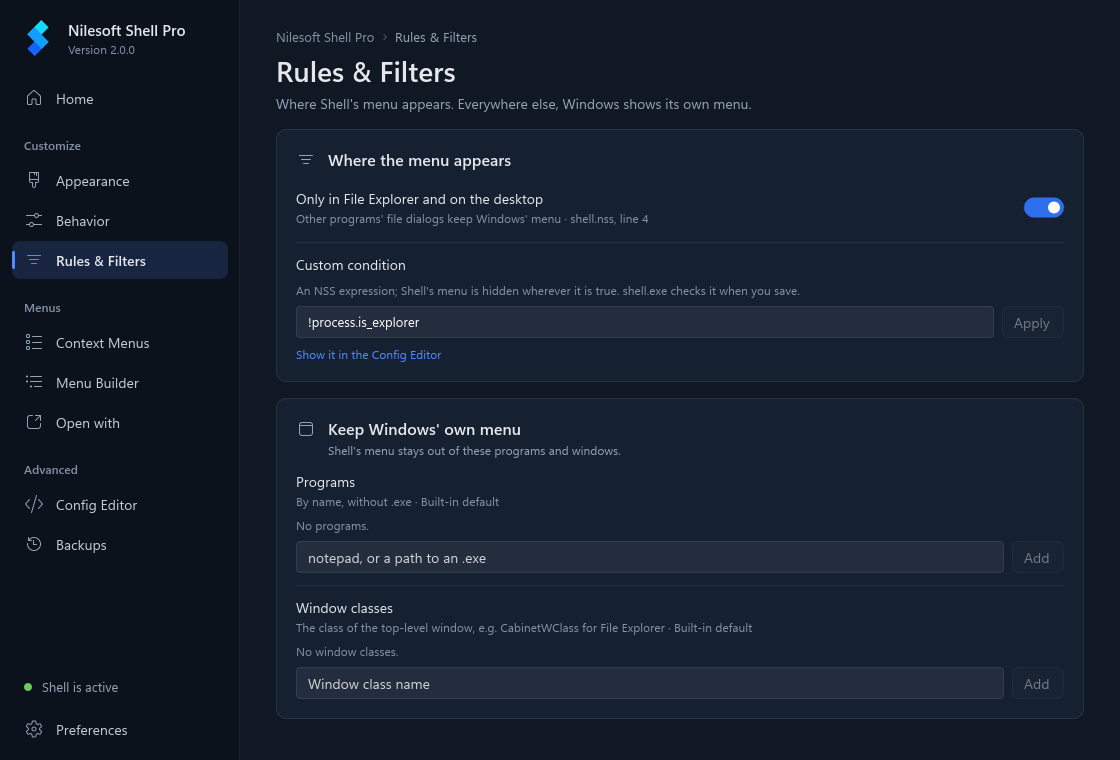
What's on the page
Where the menu appears
- Only in File Explorer and on the desktop: when on, other programs (for example the
Open and Save dialogs of other apps) keep Windows' menu. The shipped
shell.nsshas this on. - Custom condition: a one-line expression. Shell's menu is hidden wherever it is true. With the
switch above on, the box shows the condition it uses,
!process.is_explorer("the program is not File Explorer").
Keep Windows' own menu: Shell's menu stays out of these.
- Programs: by program name, without
.exe. You can also paste the full path of the.exe; the app keeps only the name, soC:\Games\MyGame\game.exebecomesgame. - Window classes: the class name of a program's main window, for example
CabinetWClassfor File Explorer. This is for advanced use; most people only need Programs.
As on the other pages, a grey line under each setting says where its value comes from (shell.nss, line 4, Built-in default, Set by this app), and changes wait until you press Save.
Keep Shell's menu out of a program
For example a game, or another file manager whose own menu you prefer.
- Open Rules & Filters.
- Under Keep Windows' own menu, click the box under Programs.
- Type the program's name without
.exe(for examplenotepad), or paste the path of its.exe. - Press Enter or click Add. The name appears in the list. A name that is already there (in any capitals) isn't added twice.
- Save.
To take a program off the list, click the × at the end of its row and save.
Not sure of the program's name? In Task Manager, the Details tab lists running programs by file name, such as
notepad.exe. You can type it with or without .exe; the app removes it.
Keep Shell's menu only in File Explorer
- Under Where the menu appears, turn on Only in File Explorer and on the desktop.
- Save.
File Explorer and the desktop show Shell's menu; other programs' file dialogs show Windows' menu. To show Shell's menu
in other programs too, turn the switch off and save. If your shell.nss has the condition (the shipped
one does), the app writes exclude.where = false over it; your file is not changed.
The switch is greyed out while a custom condition is set: the line under it says A custom condition is set below.
Use a custom condition
For cases the switch and the lists don't cover, type an expression in Custom condition. It uses the
same language as .nss files (see Expressions and the
process functions). Shell's menu is hidden wherever it is true.
- Type the condition on one line, for example
!process.is_explorer || process.name == "notepad". - Press Enter or click Apply.
- Save. The app checks the condition with
shell -config:checkfirst; if Shell can't read it, nothing is written and the footer says why.
To remove your condition, clear the box and press Enter, or click Reset, then save. The condition in your own files (if any) applies again. If your files set the condition, Show it in the Config Editor under the box opens it there.
When a list can't be edited
If one of your files sets Programs or Window classes with an expression instead of plain names, for example
if(sys.is11, 'a', 'b'), the app can't tell which names it gives. The list is then shown as written, in a
grey box, without the Add box, and the line under it says Set by an expression with a link,
Edit in Config Editor. Change it there.
What it writes
Rules go to the settings block of imports\settings-app.nss, the file the app owns, imported
at the end of shell.nss so its values win over yours. One program is written as a single name, more than
one as a list. After turning Only in File Explorer and on the desktop off (over the shipped
condition) and adding notepad and code to Programs:
// generated by Nilesoft Shell Pro, do not edit

settings
{
	exclude.where = false
	exclude.process = ["notepad", "code"]
}
With one program the line is exclude.process = "notepad". Window classes are written the same way as
exclude.window, and the switch on writes exclude.where = !process.is_explorer. When you
remove the last name and your own files have no list, the line is dropped. See
Settings for the exclude block.
Troubleshooting
Shell's menu still shows in the program.
- Press Save if the footer still counts unsaved changes. Shell reads the change on the next right-click.
- Check the name: it must be the program's file name without
.exe, not the name in its title bar. Task Manager's Details tab shows it.
Shell's menu doesn't show in another program's file dialog. Only in File Explorer and on the desktop is on, or a custom condition is true there. Turn the switch off, or change the condition.
Save says Shell rejected the config. The custom condition has a mistake. The reason after the message names the line. Fix the condition, or clear it, and save again.
Shell's menu is gone everywhere. A custom condition that is always true (such as true)
hides it everywhere. Clear the box and save, or click Reset.