
Home
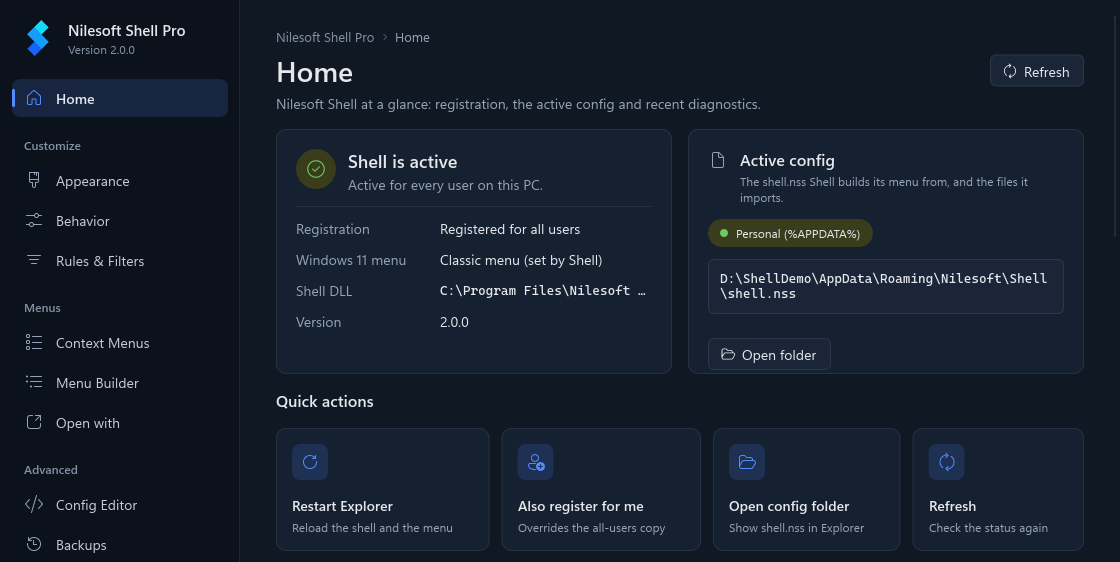
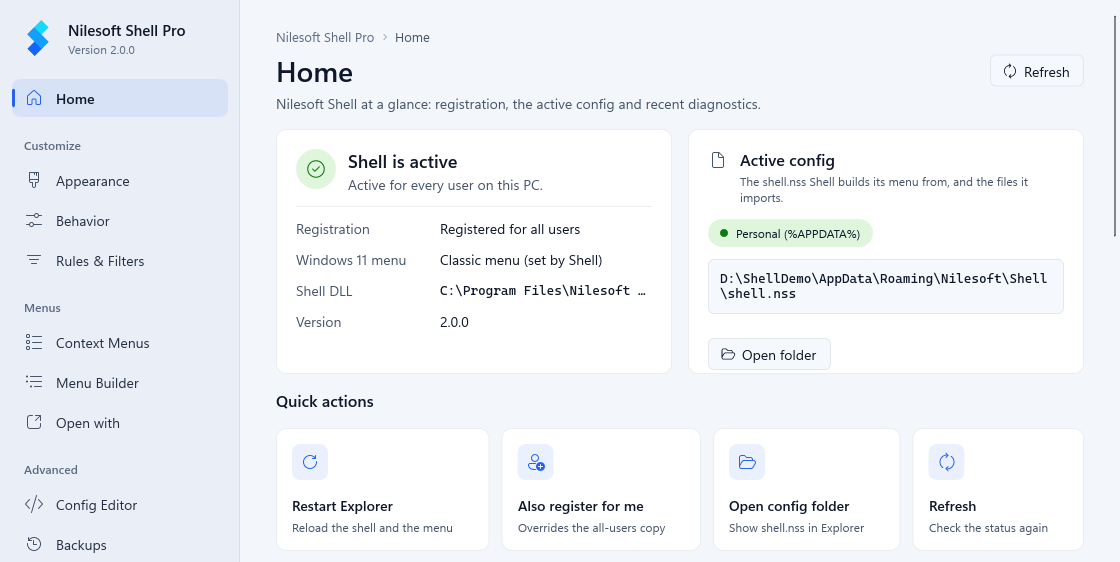
Home is the page the app opens on. It answers one question: is Shell working for you? It shows whether Shell is registered, which configuration it reads, the latest errors from its log, and buttons for the common fixes.
The app reads all of this through shell -status, so it shows the
same state the command line reports. Press Refresh at the top right to read it again, for example after
you changed something outside the app.
shell.nss.Status
The left card sums up the state in one line, with a green, yellow or red icon:
| Shell is active | Everything is in order. The line below says for whom: just you, or every user on this PC. |
| Shell is not enabled | Shell isn't registered for you or for all users, so Explorer shows its normal menu. See Warnings and fixes. |
| shell.dll is missing | Shell is registered, but the file it points to is gone (often a deleted or moved portable folder). |
| The config file is missing | Shell can't build its menu without shell.nss. |
| Two copies of Shell are registered | Another Nilesoft Shell is registered as well. See Another copy is registered. |
Under it:
- Registration: Registered for you, Registered for all users, both, or Not registered.
- Windows 11 menu: Classic menu (set by Shell) means right-click opens Shell's menu directly. Windows 11 menu; Shell is under "Show more options" means you first get the Windows 11 menu. Set by another app means another program turned on the classic menu. On Windows 10 this line says it doesn't apply.
- Shell DLL: the
shell.dllExplorer loads. It is red when the file doesn't exist. - Version: the version of
shell.exe, and (running as administrator) if you started the app that way.
Registration
Shell works once it is registered with Explorer. There are two kinds, and you can have either or both:
- For you (per user): only your Windows account. No administrator rights needed. Use Register for me on this page.
- For all users (machine-wide): everyone who signs in to this PC. This is what the MSI does, and it needs administrator rights. Use Preferences.
When both exist, your own registration wins for your account. That's useful for testing a portable copy, but it also means you stop getting the all-users copy and its updates until you unregister for yourself.
Active config
The right card shows which shell.nss Shell builds its menu from, and where it was found:
- Personal (%APPDATA%): your own copy in
%APPDATA%\Nilesoft\Shell. This is what you want: it needs no administrator rights to change and it survives updates. - Shared (install folder): the default in the program folder. The app never writes there. Press
Use per-user config to make your personal copy
(
shell -config:init); Shell switches to it right away. - Custom path (registry): a path set in the registry. The app treats it as your own config.
Open folder opens the folder in File Explorer with shell.nss selected.
Warnings and fixes
When something needs attention, a banner appears at the top of Home with a button that fixes it:
| Shell isn't enabled | Enable for me registers Shell for your account
(shell -register -user). |
| The registered shell.dll is missing | Register for me registers Shell again. |
| Shell is registered twice | Both a per-user and an all-users registration exist and point to different files; yours is used. Unregister for me goes back to the all-users copy. |
| The config file is missing | Create personal config brings back the default menu in
%APPDATA%. |
| You're using the shared config | Use per-user config makes your personal copy. |
| Couldn't read the Shell status | Try again. If it keeps failing, the message says what
shell.exe reported. |
After registering or unregistering, restart Explorer (see Quick actions) so every window picks up the change.
Another copy is registered
If another Nilesoft Shell is registered on this PC, for example the original Nilesoft Shell or an old portable copy, Home shows a red banner: Another copy of Nilesoft Shell is registered: followed by its path. Explorer may load that copy instead, and then Shell's menu doesn't appear at all. If the other copy's files were already deleted, the banner says that only its registration is left.
To fix it:
- Press Fix (needs administrator) on the banner.
- Approve the Windows administrator prompt. The app registers this copy for all users again, which takes the registration back from the other copy, and then restarts Explorer.
- When it worked, you see Only this copy is registered now.
If the banner says Another copy is still registered, the other program registered itself again. Uninstall it
from Settings → Apps → Installed apps (for a portable copy, run shell -unregister from its
folder), then press Fix again. See also Installation. If you cancel the
administrator prompt, nothing is changed.
Quick actions
| Restart Explorer | Closes and reopens Explorer for your session, so it loads Shell (or stops loading it). Your files are not affected. |
| Register for me / Unregister for me | Turns Shell on or off for your account only. With an all-users registration in place, it reads Also register for me, which overrides the all-users copy for you. |
| Open config folder | Shows shell.nss in File Explorer. |
| Refresh | Reads the status again. |
On Windows 11, Register for me also turns on the classic menu, so right-click opens Shell's menu directly, unless you switched that off in the first-time setup.
Diagnostics
The Diagnostics list shows errors and warnings from shell.log, the log next to the active
shell.dll, newest first. Each entry has its time and, when Shell knows it, the line and column in your
configuration.
- Click an entry to open that file at that line in the Config Editor.
- Open shell.log opens the whole log (in Notepad if no other program opens
.logfiles). - No errors or warnings in shell.log means the last load went fine.
The log keeps old entries. If you already fixed an error, check its time before you go looking for it.
First-time setup
The app opens a three-step setup when Shell isn't enabled yet or Explorer still reads the shared configuration. Use Next and Back to move between the steps.
- Personal config. Press Create personal config. A green line then shows the path,
for example
%APPDATA%\Nilesoft\Shell\shell.nss. - Enable. Press Enable for me. On Windows 11, leave Use the classic context menu on Windows 11 on to get Shell's menu straight away, or turn it off to keep the Windows 11 menu and find Shell under Show more options. If Shell is already enabled for all users, there is nothing to do; Register it for my account as well is there only if you want your own registration.
- Look. Pick Auto, Modern, Classic, White or Black. Press Restart Explorer once after enabling Shell, then Finish. Finish checks the configuration and saves the theme. More themes on the Appearance page finishes and opens Appearance.
Skip setup (or Esc) closes it and drops a theme you picked but didn't save. Either way the setup isn't shown again on its own. To go through it again, click Run first-time setup again at the bottom of Home.
Troubleshooting
- shell.exe was not found. The app looks for
shell.exenext to itself. KeepNilesoftShellPro.exein the program folder, or reinstall. - Home says Shell is active, but right-click shows the normal menu. Press Restart Explorer. On Windows 11, check the Windows 11 menu line: if Shell is under Show more options, register again for yourself with the classic menu on, or use Behavior.
- The menu disappeared after you edited a file by hand. Look at Diagnostics: a parse error turns the whole Shell menu off. Click the error to fix it in the Config Editor, or restore the last working version from Backups.
- The administrator prompt was cancelled. Nothing was changed. Press the button again and choose Yes in the Windows prompt.