
Preferences & Updates
Preferences is about the app itself: how it looks, registering Shell for everyone on this PC, keeping the app up to date, and version and licence information.
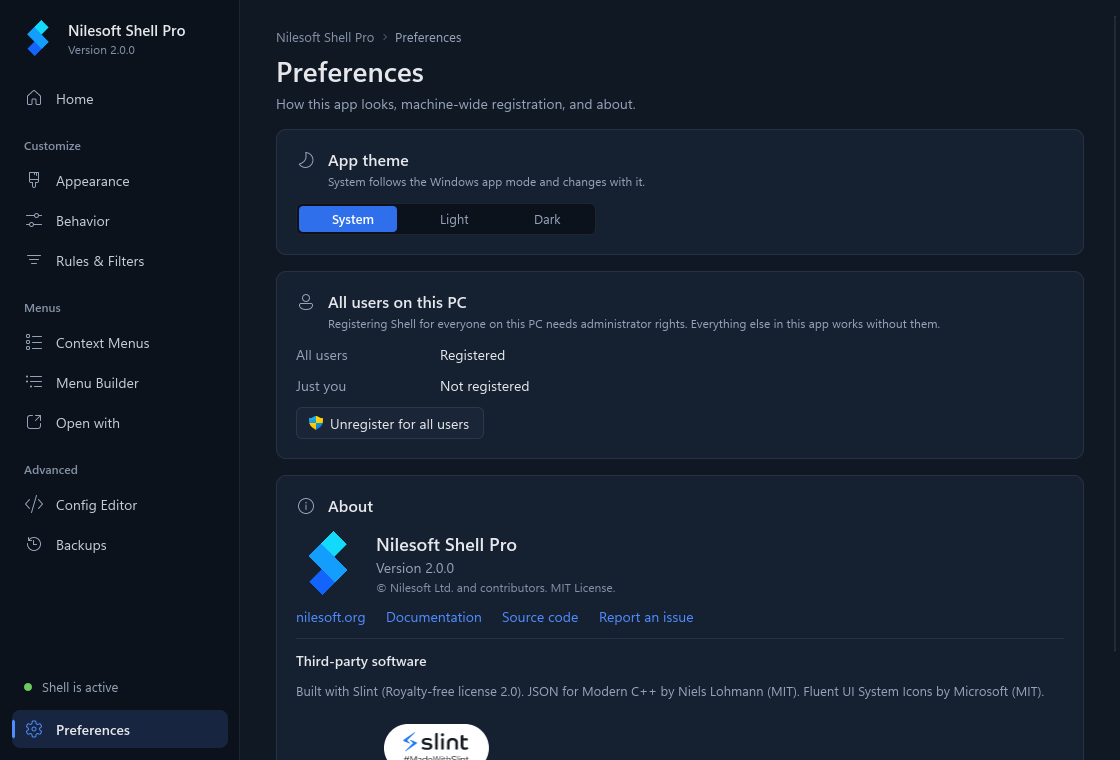
App theme
Choose System, Light or Dark. System follows the Windows app mode (Settings → Personalization → Colors) and changes with it while the app is open. This only changes the app's own window; the look of Shell's menu is set on Appearance.
Language
The app is available in English, Simplified Chinese (简体中文) and Traditional Chinese (繁體中文). Choose Auto, English, 简体中文 or 繁體中文. The change applies right away, with no restart.
- Auto (the default) follows the Windows display language (Settings → Time & language → Language & region). Chinese for Taiwan, Hong Kong or Macao, or any Traditional Chinese, picks 繁體中文; any other Chinese picks 简体中文; every other language picks English. The card says which language Auto uses right now.
- The setting only changes the app's own window. The text of Shell's menus comes from your configuration; the
default configuration has its own language files in
imports\lang. - Config keywords, file names and code samples stay in English in every language, because that is how you type
them in
shell.nss.
The choice is stored as Language under HKEY_CURRENT_USER\Software\Nilesoft\Shell\Settings
(empty for Auto, en, zh-CN or zh-TW).
Translating the app
The translations are plain gettext .po files in the source tree, under
src/settings/translations/<language>/LC_MESSAGES/nilesoft-shell-pro.po, and are built into
NilesoftShellPro.exe, so the app needs no extra files. To fix a translation, edit the
msgstr of the entry in that file (any text editor or Poedit works) and send a pull request. To add a
language, see Translations in src/settings/README.md: one command creates the file, and the new
language then shows up in this setting by itself.
All users on this PC
This card shows whether Shell is registered for All users and for Just you, and has the one button in the app that needs administrator rights.
- Press Register for all users (or Unregister for all users). The UAC shield on the button means Windows will ask.
- Choose Yes in the Windows prompt. The app runs
shell -register(or-unregister) as administrator. - Restart Explorer from Home so the change takes effect.
On Windows 11, registering for all users also turns on the classic menu unless you turned that off in the first-time setup. If you cancel the prompt, nothing is changed. The MSI already registers Shell for all users; you need this button mainly for a portable copy you want everyone to use. To turn Shell on for your account only, without administrator rights, use Register for me on Home.
Updates
The app looks for new versions in this project's GitHub releases. When one is available, Home shows a banner with Release notes, Download and install and Skip this version, and the sidebar shows Update available above the status line. The Updates card in Preferences has the version you run (and whether it is the MSI, installed for all users, or a portable copy), the channel, the last check and a Check now button.
Update settings
- Check for updates automatically (on by default): when the app starts, at most once a day, and once a day while it stays open. A failed automatic check (offline, or GitHub's request limit) stays quiet and is tried again later; Check now says what went wrong.
- Download and install updates automatically (off by default): the update is downloaded and verified in the background, then the banner offers Restart to update. Nothing is installed without that click, and an MSI install still asks for administrator approval once.
- Channel: Stable offers releases only; Beta also offers pre-releases such as
2.1.0-beta.1. A pre-release build starts on Beta, every other build on Stable. - Skip this version (on the Home banner) hides that version; a newer one still shows up.
Installing an update
- Save or discard your unsaved changes, on every page. The app closes to install the update, and it won't start the update while Appearance, Behavior or Rules & Filters have changes waiting.
- Press Download and install on the Home banner or in Preferences (or Check now first). A progress bar shows the download; Cancel stops it.
- When the download is checked, the app closes and the update is installed:
- MSI (the button has the UAC shield): Windows asks for administrator approval once. Choose Yes. The installer runs with a small progress window and restarts Explorer.
- Portable: no administrator rights and no prompt. The app is gone for a moment.
- The app opens again on its own and Home says Updated to and the new version. For a portable copy, press
Restart Explorer on that banner to load the new
shell.dll; until then Explorer keeps using the old one.
Your configuration in %APPDATA%\Nilesoft\Shell is never touched by an update.
What happens behind the scenes
- The file for your install is downloaded to
%LOCALAPPDATA%\Nilesoft\Shell\updates\<version>:setup-x64.msiorsetup-arm64.msiwhen the app runs from Program Files and Shell is registered for all users from there, otherwise the x64 portable zip. Only addresses under this project's releases (and the GitHub hosts they redirect to) are accepted. - It is checked against the release's
SHA256SUMS.txt, which is downloaded first. A file that doesn't match is deleted and nothing is installed. A release withoutSHA256SUMS.txtisn't installed at all. - The app closes and a copy of it in
%TEMP%finishes the job:- MSI: Windows asks for administrator approval, then
msiexec /i setup-x64.msi /passive /norestartruns (its log is saved next to the MSI). The installer restarts Explorer, and the app opens again on its own. - Portable: no administrator rights. The files are copied over the install folder; the
shell.dllExplorer has loaded is renamed aside first (Windows allows that for a DLL in use) and removed on a later start. A.nssfile you edited in that folder is kept, with the new default saved next to it as.nss.new. If a file can't be replaced, everything is put back. The app opens again and offers Restart Explorer to load the newshell.dll.
- MSI: Windows asks for administrator approval, then
Downloads of versions you already have are removed the next time the app starts. The update settings are stored
under HKEY_CURRENT_USER\Software\Nilesoft\Shell\Settings.
Troubleshooting updates
| You seem to be offline, so updates couldn't be checked. | Check your internet connection, then press Check now. |
| GitHub's limit for update checks was reached. | GitHub limits how often one address can ask. Wait an hour and press Check now again. |
| Save or discard your changes first | Appearance, Behavior or Rules & Filters has unsaved changes. Save them (Ctrl+S) or discard them, then press Download and install again. |
| The administrator prompt was cancelled. Nothing was changed. | Press Restart to update and choose Yes in the Windows prompt. The download is kept, so it isn't downloaded again. |
| The download doesn't match SHA256SUMS.txt | The file was damaged on the way and has been deleted. Try again; if it keeps happening, download the release from GitHub yourself. |
| This release has no download for this kind of install. | Get the update from the release page (Release notes opens it). |
| The update wasn't installed (after the app reopens) | The message says why. For an MSI, it names the installer's log file next to the MSI. Another installation is in progress means Windows is installing something else: wait and try again. |
| The update was cancelled | The installer was cancelled; nothing was changed. |
| The update can't be installed from the app at all | Download the MSI or the portable zip from the latest release and install it by hand (see Installation). |
About
The About card shows the app's version (and the version of shell.exe if it differs), the licence, links
to nilesoft.org, the documentation, this fork's source code and its issue tracker (Report an issue), and the
third-party software the app uses: Slint, JSON for Modern C++ and Fluent UI System Icons.