
The app
Nilesoft Shell Pro (NilesoftShellPro.exe, next to shell.exe in the program folder) is a
desktop app for checking an installation and editing the configuration without opening
shell.nss by hand. It is part of this fork and is included in the MSI and the portable zip.
%APPDATA%\Nilesoft\Shell and the per-user registration under
HKEY_CURRENT_USER. Two actions ask for administrator approval, and both carry the UAC shield:
registering for all users in Preferences, and installing an update of the MSI
version.
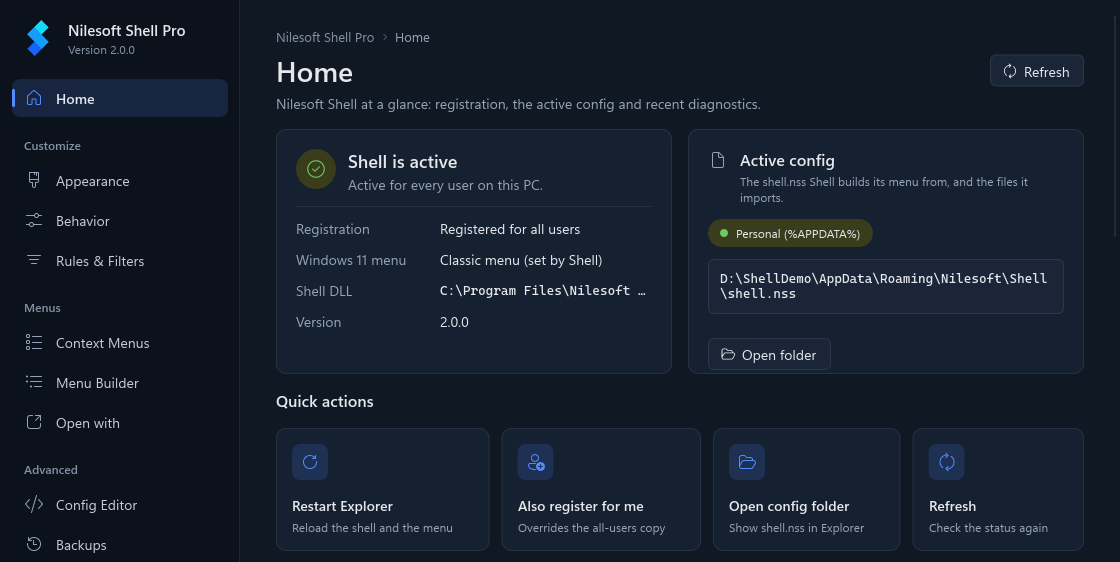
Opening the app
- Start menu: the MSI adds one entry, Nilesoft Shell Pro. Open Start, type Nilesoft and press Enter.
- From the program folder: double-click
NilesoftShellPro.exe, or double-clickshell.exe: run without options, it opens the app (see Command line). This is also how you start a portable copy.
The app remembers its window size and position. Its own settings are stored under
HKEY_CURRENT_USER\Software\Nilesoft\Shell\Settings.
First run
When Shell isn't enabled yet, or Explorer still reads the shared configuration from the program folder, the app opens with a short setup:
- Personal config: Create personal config copies
shell.nssand its imports to%APPDATA%\Nilesoft\Shell(shell -config:init). - Enable: Enable for me registers Shell for your Windows account
(
shell -register -user). On Windows 11 you can choose whether Shell's menu replaces the Windows 11 menu. - Look: pick a theme, then Restart Explorer once so the menu loads everywhere. Finish saves the theme.
Skip setup or Esc closes it without saving, and it isn't shown again on its own. To run it again, use Run first-time setup again at the bottom of Home. Details: Home, first-time setup.
The pages
Each page has its own guide:
| Home | Whether Shell is working, which configuration
it reads, recent errors from shell.log, and quick actions such as Restart Explorer. |
| Appearance | Themes, colours, font, corners, border and shadow, with a live preview of the menu on your wallpaper. |
| Behavior | Whether Shell's menu replaces the Windows 11 menu, the submenu delay, tooltips, screenshots, and Windows' own items. |
| Rules & Filters | Where the menu is shown, and which programs and windows it leaves alone. |
| Context Menus | Turn the bundled menus on or off, and the rules that hide, move or rename Windows' own items. |
| Menu Builder | Your own menus, items and separators, without writing code. |
| Open with | "Open in" items for your editors and terminals, and hiding other apps' menu items. |
| Config Editor | shell.nss and every
file it imports, with highlighting and a check while you type. |
| Backups | The snapshot taken before every save: compare, restore, pin or delete. |
| Preferences & Updates | The app's theme, registration for all users, updates, and About. |
How changes are saved
Appearance, Behavior and Rules & Filters collect your changes until you press Save (or Ctrl+S).
Only the keys you change are written, to an app-owned imports\settings-app.nss imported last by
shell.nss, so your own theme and settings stay as you wrote them.
Before writing, the new configuration is checked with
shell -config:check; a configuration Shell would reject is not
written. Each save takes a snapshot first (see Backups).
The other pages that write files follow the same steps, each with a file of its own:
| Menu Builder | imports\settings-app-menus.nss |
| Open with | imports\settings-app-openwith.nss |
| Context Menus | Comments out (or back in) lines in shell.nss and the bundled imports; nothing
is deleted. |
| Config Editor | The file you edited, keeping its encoding and line endings. |
Every save on these pages goes through these steps:
- Check. The configuration, with your changes, is copied to a temporary folder and checked there
with
shell -config:check. The menu you are using is not touched. If Shell would reject it, nothing is written and the page shows Shell's error. - Snapshot. A copy of your configuration files goes to
%APPDATA%\Nilesoft\Shell\backups, named after what you changed. - Write. The changed files are written, imports before
shell.nss, so Shell never reads ashell.nssthat points at an import that isn't there yet. - Roll back if needed. If one of the files can't be written, the ones already written are put back as they were.
Appearance, Behavior and Rules & Filters also verify after writing: the saved files are checked
again, and the app watches shell.log for a moment in case a menu opens and fails to load them. If either
finds an error, the previous files are put back and the footer says Shell rejected the config, rolled back: …
The Config Editor is the one place where you can save a configuration with errors, after a warning; see Config Editor.
When the save works, Shell picks up the change on the next right-click. If Explorer still reads the shared configuration in the program folder, which the app never writes to, the app first offers to create your personal copy and then saves there.
Updates
The app checks this project's GitHub releases once a
day and shows a banner on Home when a new version is out. Download and install downloads the right file for your
install, checks it against the release's SHA256SUMS.txt, installs it and opens the app again. Your
configuration is never touched by an update. Details, settings and troubleshooting:
Preferences & Updates.
Applying changes
There is no restart step for configuration changes: Shell reloads the configuration when a file it loaded changes. Registration changes still need Explorer to restart, which the app does for the current session only.