Quickstart
From sign-up to a working board in about five minutes. This walkthrough uses the hosted web app; the desktop app works identically, and the mobile app uses the same accounts and data.
Just want to look around?
The demo organization comes fully populated: a 150-task project with a live dashboard. Log in with the demo credentials and skip straight to step 4.
1. Create an account
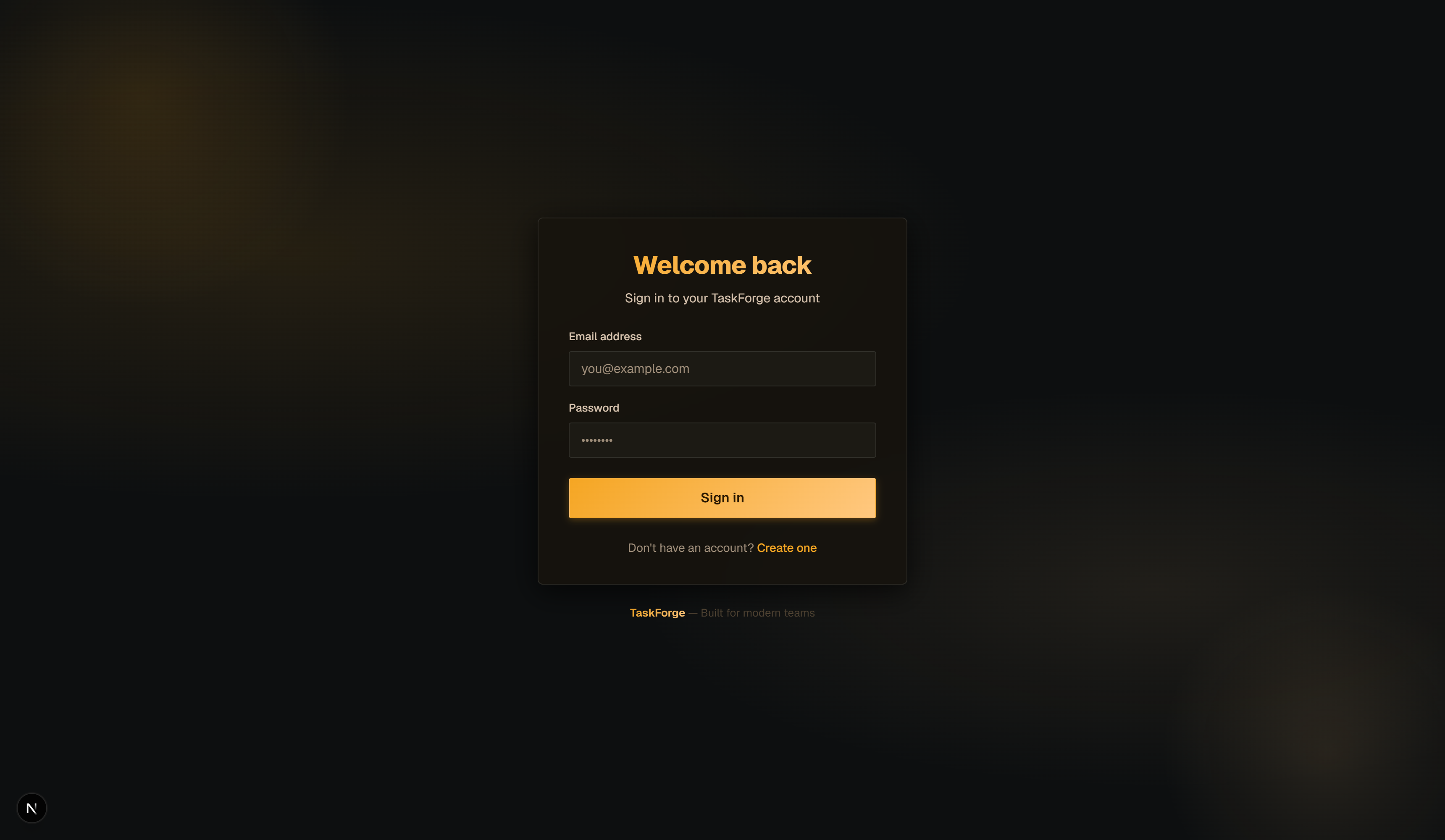
Open the web app and register with your name, email and a password. You're logged in immediately: TaskForge uses JWT sessions, so there's no email round-trip to wait for.
2. Create an organization
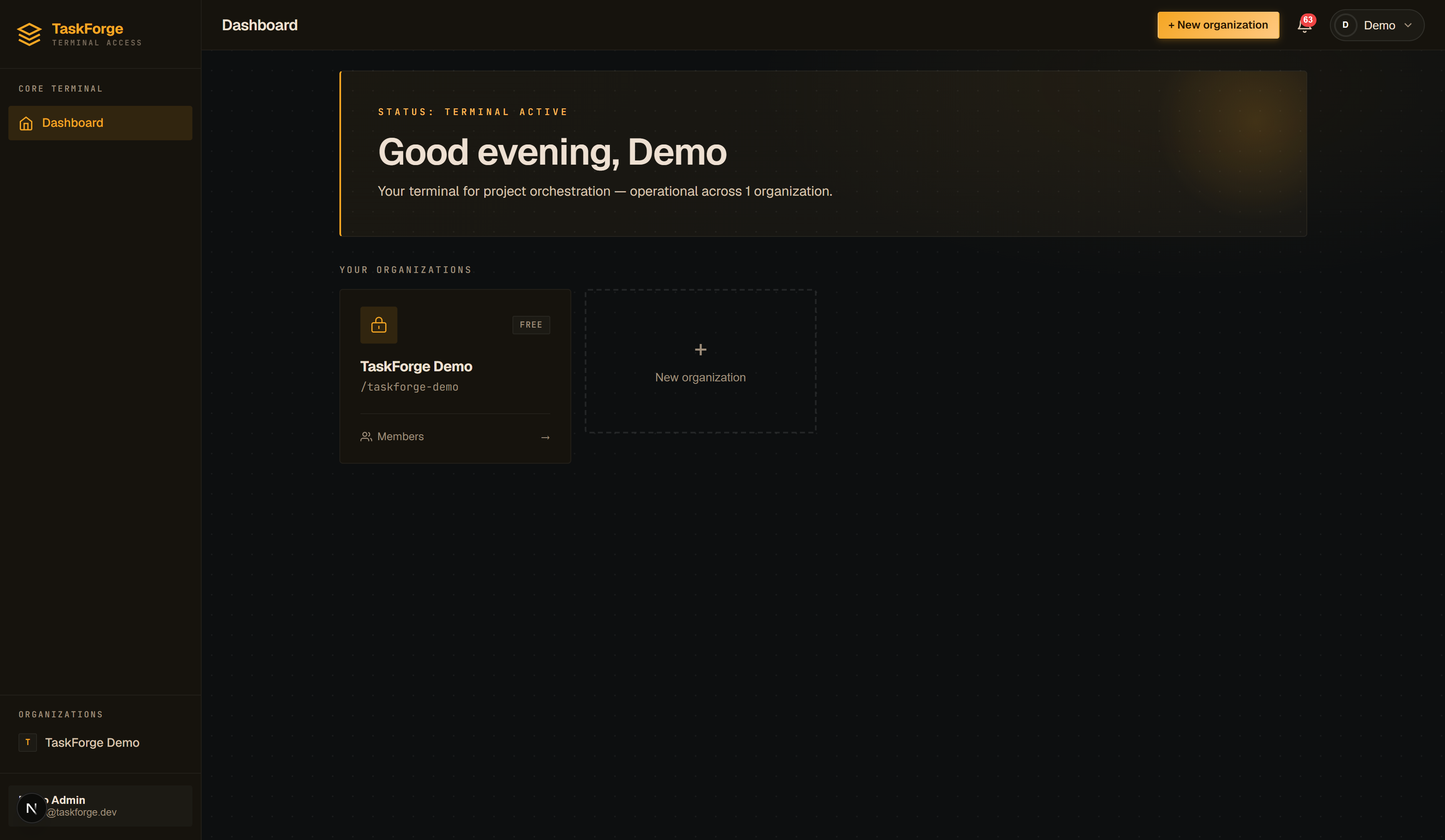
An organization is your team's workspace: members, roles, projects and tasks all live inside it. From the dashboard home, click New Organization, give it a name, and TaskForge generates its URL slug.
You're the Admin of any organization you create. To bring in teammates, open the organization and use Invite to pick a role per person:
| Role | Can do |
|---|---|
| Admin | Everything: manage members, projects, settings |
| Member | Create and edit projects and tasks |
| Viewer | Read-only access to boards and dashboards |
More on this in Organizations & teams.
3. Create a project
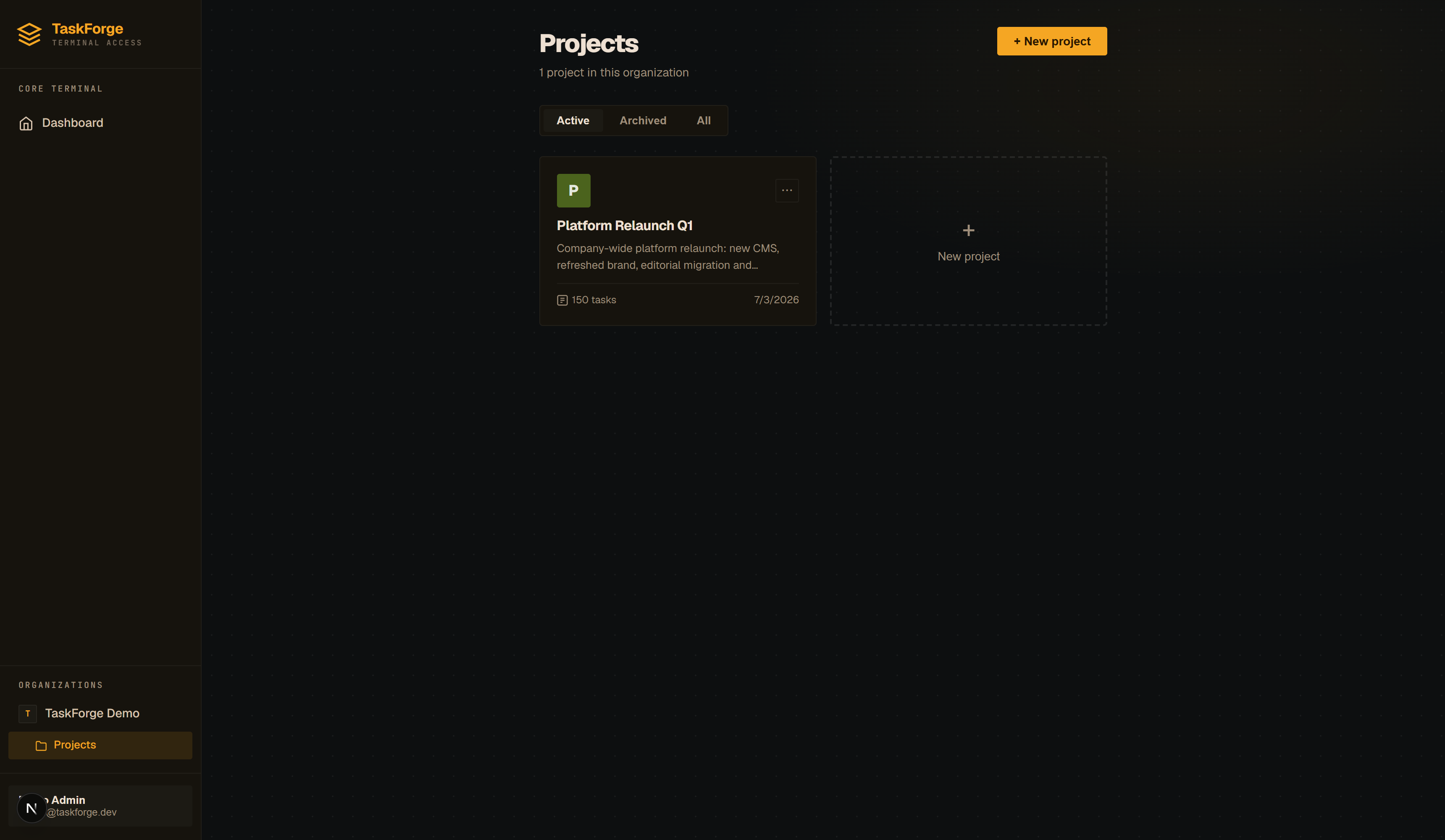
Inside the organization, go to Projects → New Project. A project has a name, description, status (Planning / Active / On hold / Completed), priority and a due date.
4. Open the board and add tasks
Click the project to open its board. This is where you'll spend most of your time. Add a task with New Task: title, description, priority, labels, start/due dates, and one or more assignees.
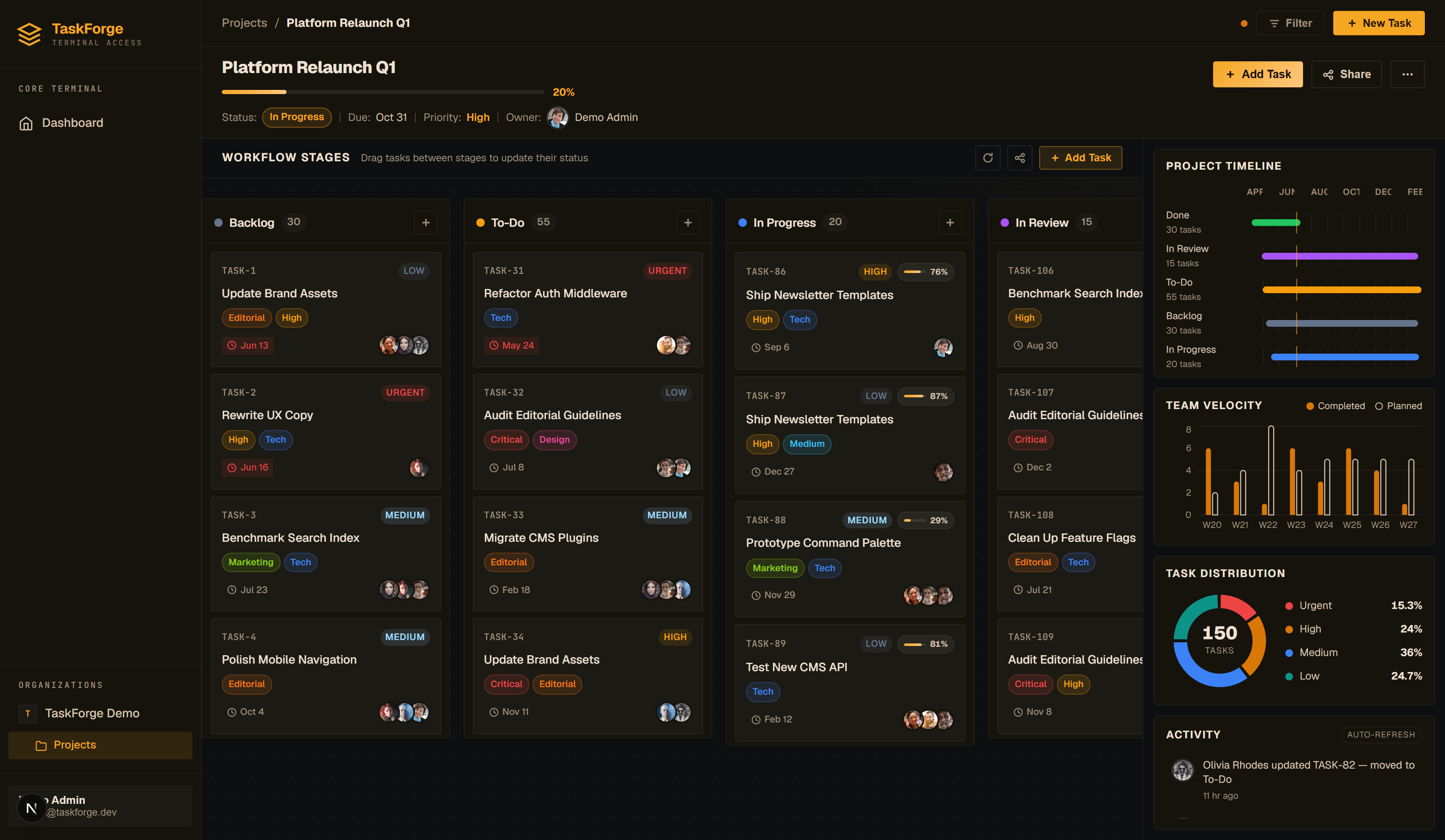
Drag cards between columns as work progresses. Everything on the card is information-bearing:
- Avatar cluster: every assignee, with a
+Noverflow badge - Labels: colored chips you define per project
- Due date: clock chip, highlighted when close
- Progress pill: percent complete for in-progress work
5. Read the dashboard
The right-hand rail is the project's mission control: timeline, velocity, priority distribution and the live activity feed. It updates as your team moves cards. The dashboard guide explains how each panel is computed.
Where to next
- Projects & the Kanban board: cards, columns and workflow in depth
- Import, export & reports: JSON templates and PDF reports
- The desktop app: install TaskForge natively on Windows
- The mobile app: install TaskForge on Android