
Organizations & teams
Everything in TaskForge belongs to an organization: members, projects, tasks, labels and activity. You can belong to several organizations at once and switch between them from the dashboard home.
Creating an organization
From the dashboard home, click New Organization and give it a name. TaskForge derives a URL slug from the name (for example Acme Inc → acme-inc), and the organization lives at /orgs/acme-inc. The creator becomes the organization's first Admin.
Members and roles
Open an organization to see its member table. Each row shows the member's avatar, name, email, role and join date.
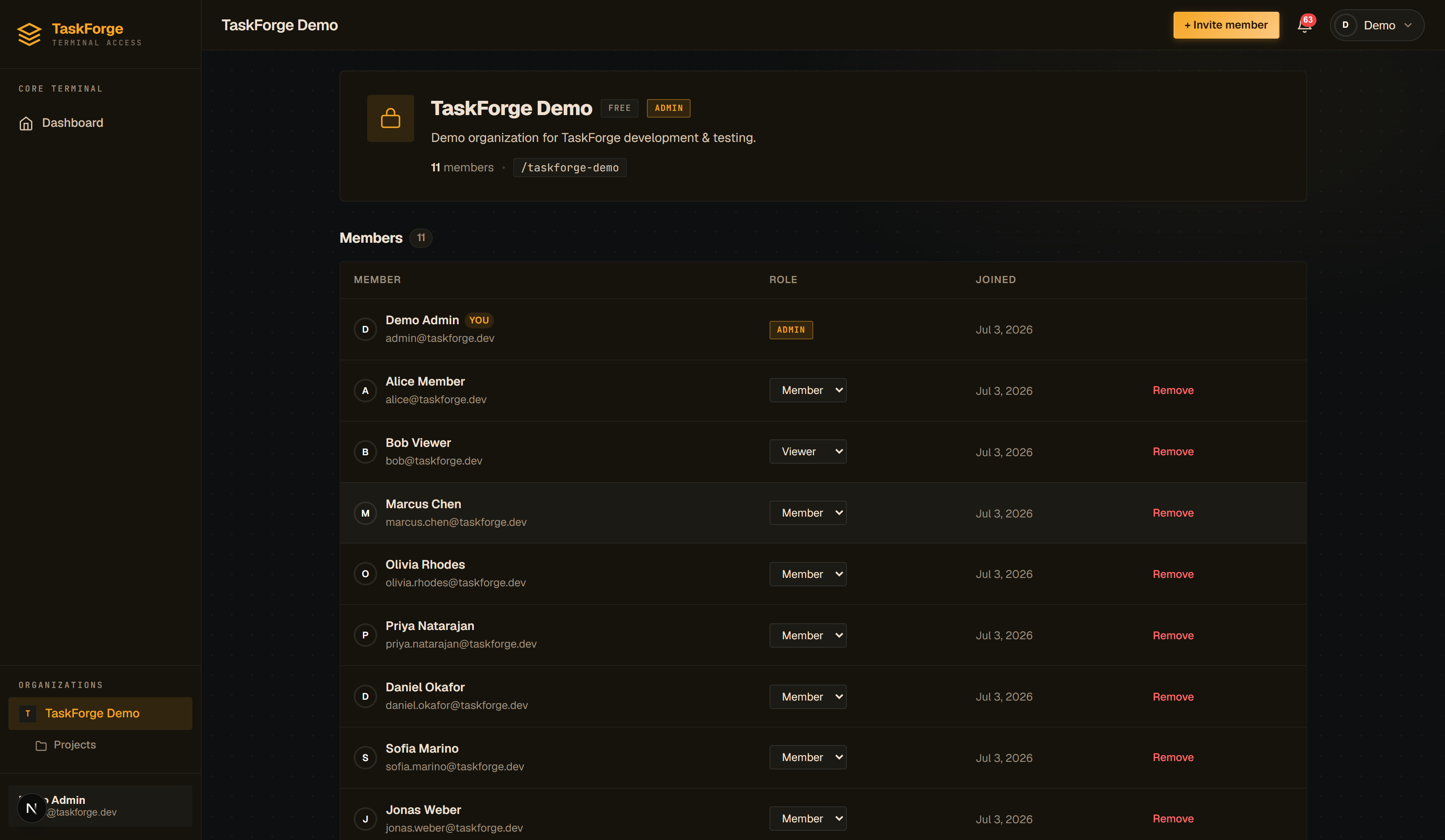
Roles are enforced by the API, not just hidden in the UI:
| Role | Manage members & settings | Create / edit projects & tasks | View boards & dashboards |
|---|---|---|---|
| Admin | ✅ | ✅ | ✅ |
| Member | - | ✅ | ✅ |
| Viewer | - | - | ✅ |
Choosing roles
Give Viewer to stakeholders who need visibility (clients, managers outside the team) and Member to everyone doing the work. Keep Admin to one or two people. Admins can remove members and delete projects.
Inviting people
Click Invite on the organization page, enter the invitee's email and pick their role. Existing TaskForge users are added directly; the member table updates as soon as the invite is accepted.
Switching organizations
The dashboard home lists every organization you belong to as a card with its member count. Clicking a card scopes the whole app to that organization: the projects list, boards and notifications you see are that organization's only.
Under the hood every API request carries the organization slug (in the URL or the X-Organization-Slug header), and the backend enforces row-level isolation per tenant. See the API reference.
Notifications
The bell in the top bar tracks things that happen to you: task assignments and status changes on your work. The unread count refreshes automatically about every 30 seconds; click the bell to read and clear.