
Projects & the Kanban board
A project is a board plus its analytics. This page covers the board half: columns, cards and the task lifecycle. The analytics half is covered in The project dashboard.
Projects
Projects → New Project creates one. Beyond the name and description, a project carries:
- Status: Planning, Active, On hold or Completed
- Priority: Low, Medium, High or Urgent
- Due date: drives the "days left" chip in the project header
- Progress: computed automatically as tasks in terminal columns ÷ all tasks, or set explicitly with a manual override
The projects list shows all of this at a glance; click through to open the board.
The project header
The top of the board shows the project's vital signs, the progress bar, status and priority badges, the due-date countdown, team avatars and the actions menu (Export JSON, Export PDF, Import and project settings).
Workflow columns
Columns are the project's workflow stages. The default set is Backlog → To-Do → In Progress → In Review → Done, and you can rename, recolor, reorder or add your own from the Workflow Stages toolbar above the board.
One thing matters when designing your workflow: columns marked terminal (like Done) are what "finished" means. Terminal columns feed the project's progress figure, the velocity chart's completed series and the timeline's completion state.
Cards
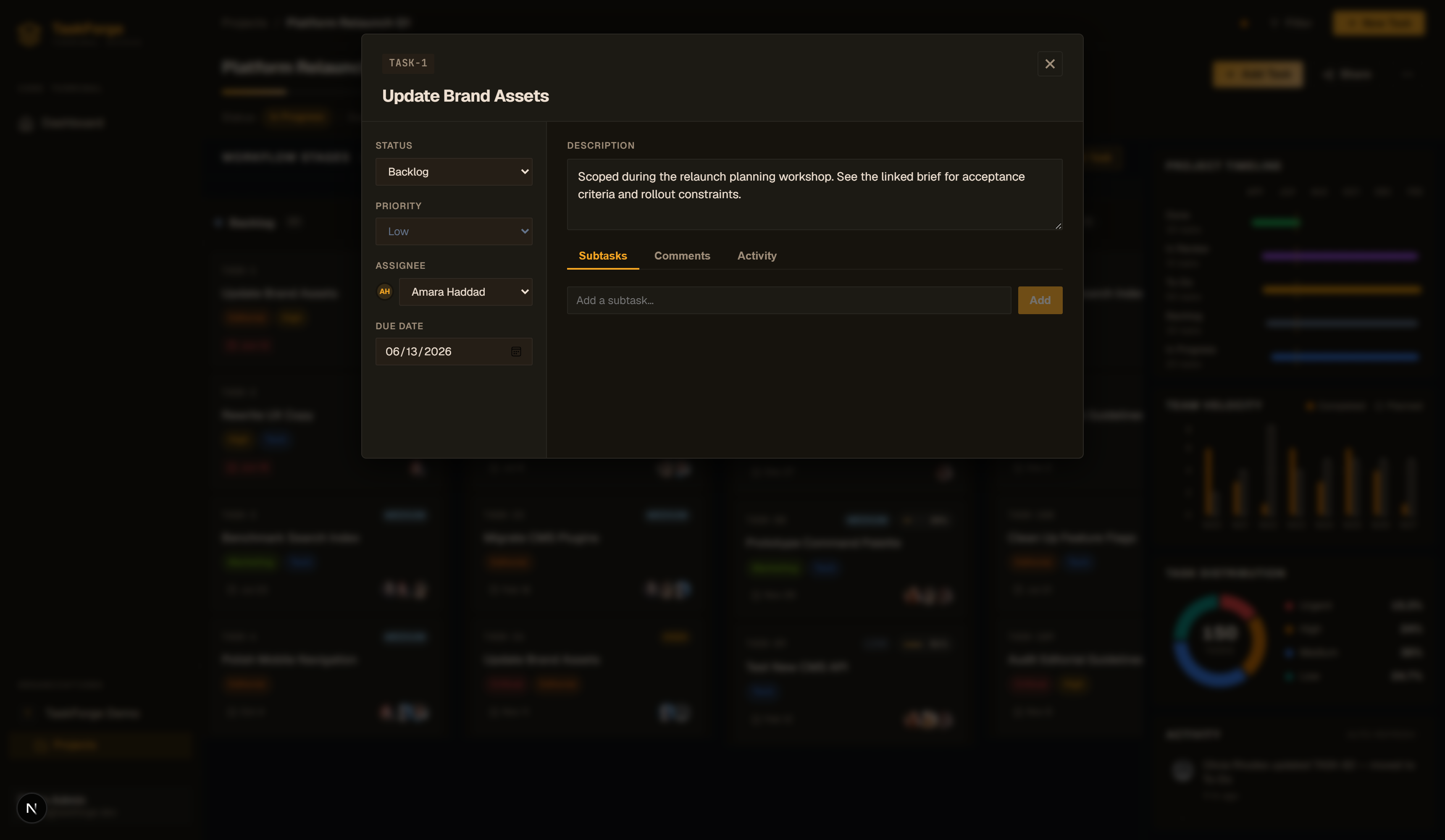
Create a task with New Task, or click any card to open the full detail view. A task carries:
| Field | Notes |
|---|---|
| Title & description | Description supports long-form text |
| Assignees | One or more members; the card shows an avatar cluster with a +N overflow badge |
| Labels | Colored chips, defined per project |
| Priority | Low / Medium / High / Urgent, feeds the distribution donut |
| Start & due dates | Position and length of the task's bar on the timeline |
| Progress | Percent complete, shown as a pill on in-progress cards |
| Attachments | Files uploaded from the detail view |
| Subtasks | A lightweight checklist inside the task |
| Comments | Discussion thread on the detail view |
Moving work
Drag a card to move it between columns or reorder it within one. The change saves immediately, there is no save button, and everything downstream updates with it: column counts, project progress, the activity feed, and the assignees' notifications.
Keyboard-free triage
Card edits (priority, assignees, labels, dates) all happen in the detail modal, so you can work through a column top to bottom without touching the board layout.
Where the board data goes
Every board interaction is a plain REST call under the hood: creating a task is POST /api/v1/projects/{project_id}/tasks/, and a drag is a PATCH to the task's move endpoint. If you want to script against your board, start with the API reference.